



How to optimize for long-form reading
It's one thing to scroll through emails or articles that you've saved, using Reader's various organization and triage tools to sort them, tag them, and archive them. It's quite another to get properly immersed in a book (especially while using an e-ink device) when you might prefer that those other tools take a backseat to the reading experience.
Default settings
To better implement a focused reading environment, Reader has some options that can be made default for certain document types (EPUBs, emails, and articles) to make it feel less like an all-in-one read-it-later app and more like a book-reading app.
Long-form reading view
A dedicated reading layout that hides Reader's action-heavy bottom bar and elevates UI elements like reading progress and appearance settings.
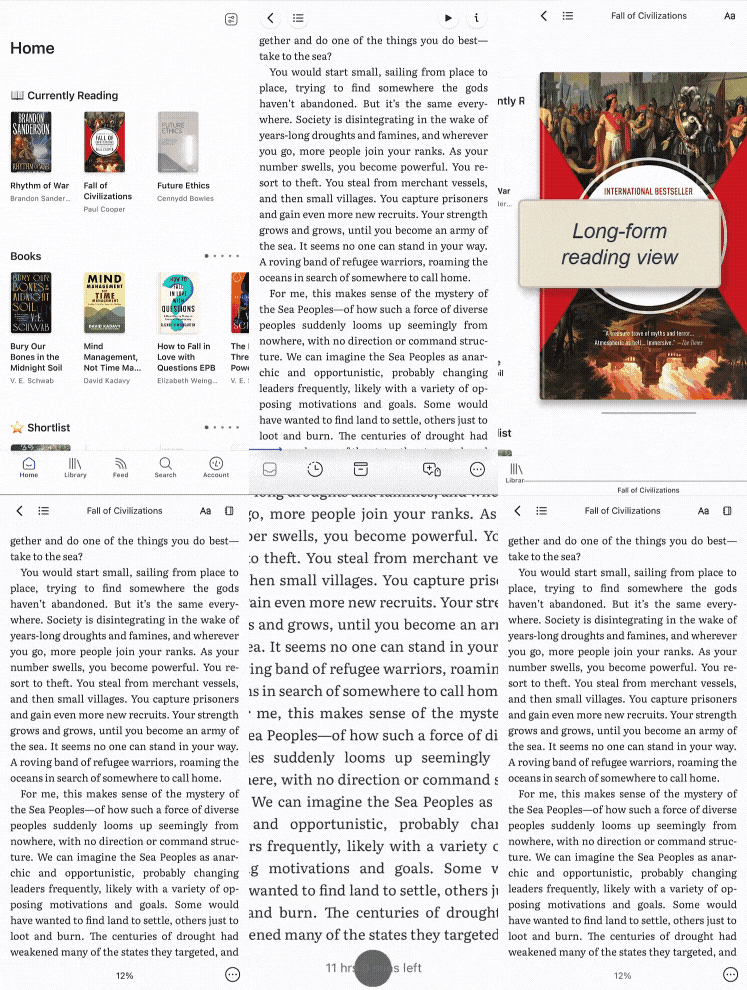
This setting is turned on for EPUBs by default, but you can turn it on or off for each document type in the Account settings > Long-form reading view menu.
Paged scroll
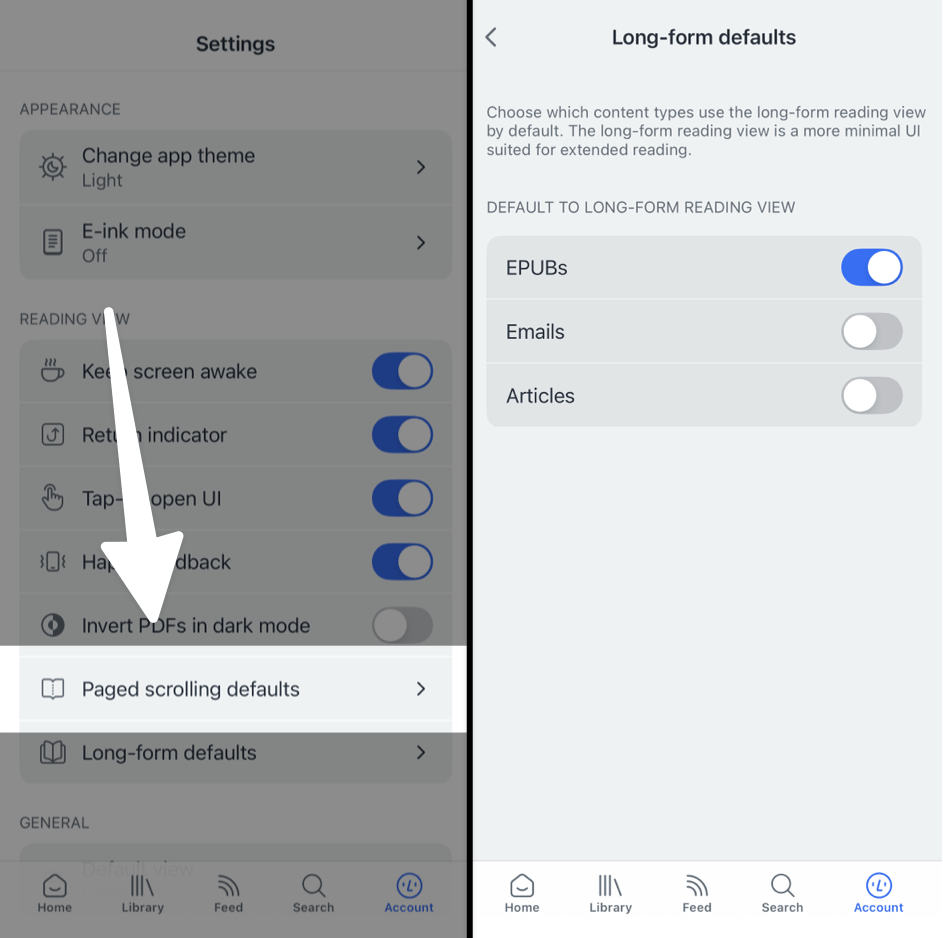
For a more book-like reading experience, we recommend using the paged scroll option.
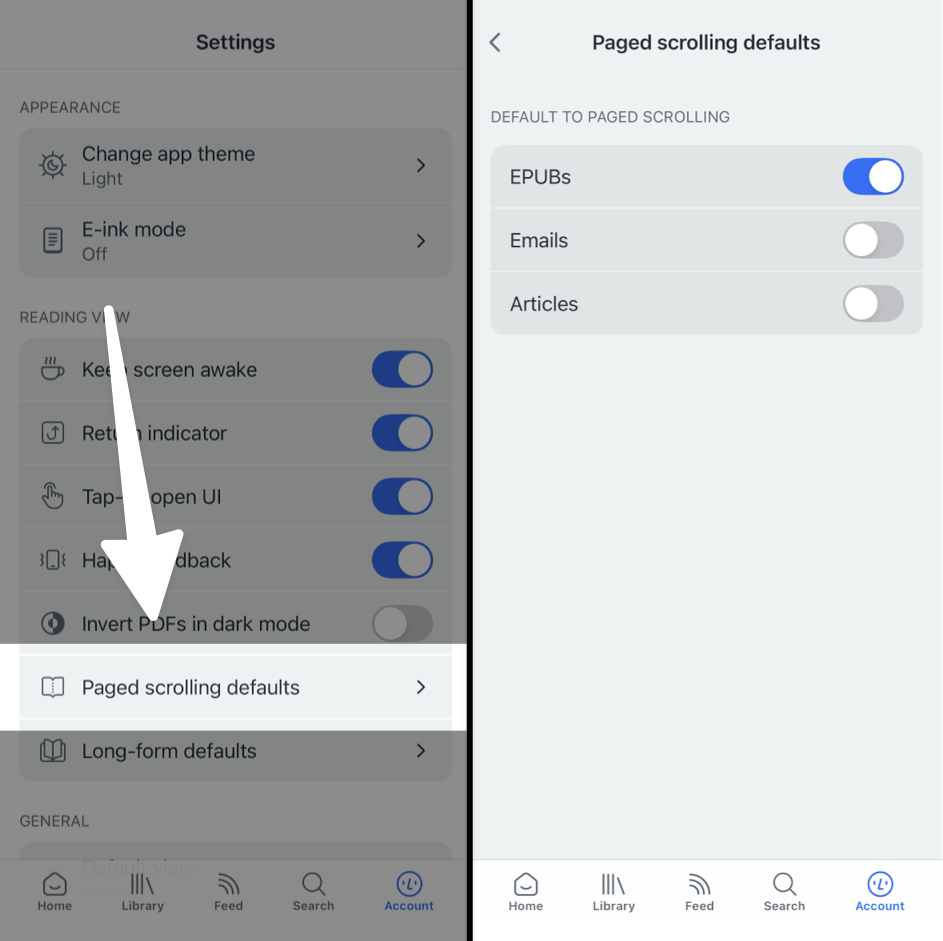
This option is turned on by default for EPUB files but can be toggled per document from the Appearance menu.
Justify text
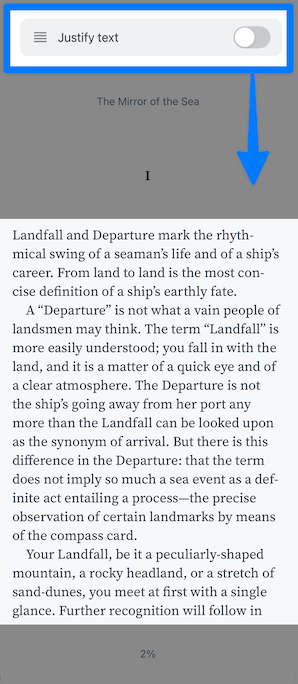
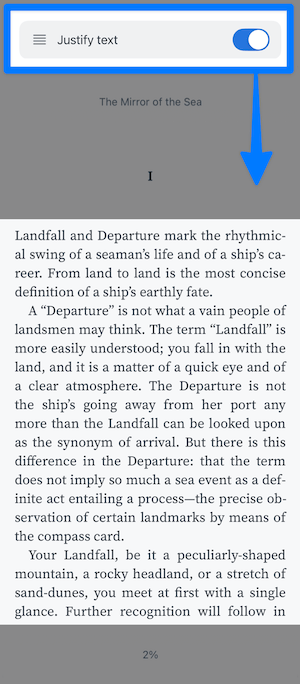
If a ragged right edge doesn't feel enough like a real book, you can turn on the Justify text toggle in More style settings.
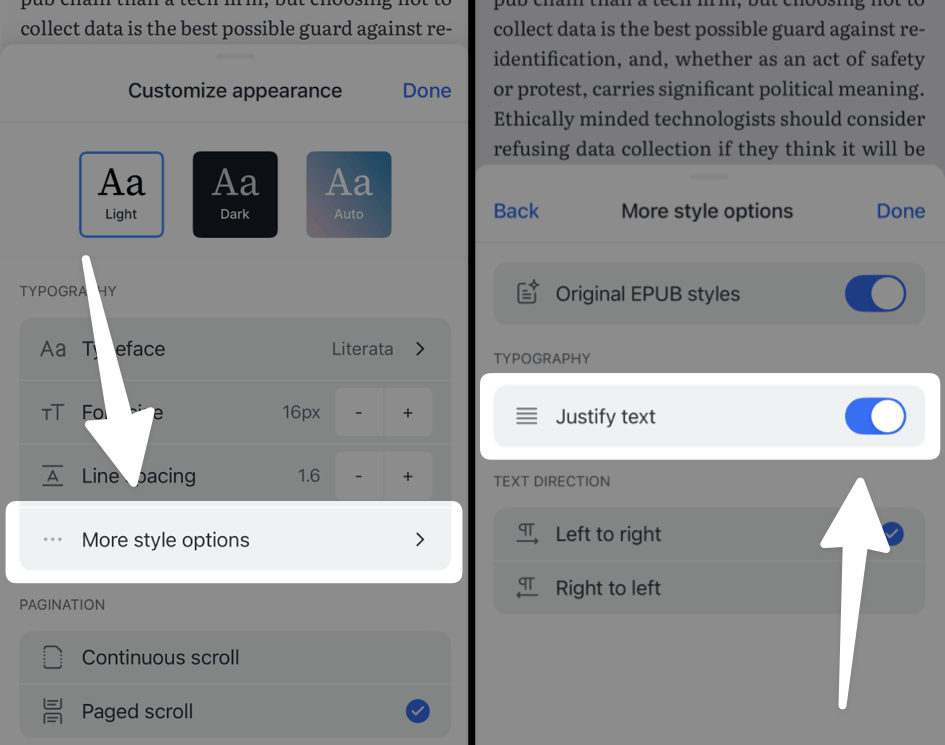
Here's a side-by-side comparison of two options.
App layout configurations
If you want to take your customization a step further and make books feel like first-class citizens throughout the entire app, here are a few suggestions for ways you can modify Reader's layout and default views.
Pin "Books" view to Home
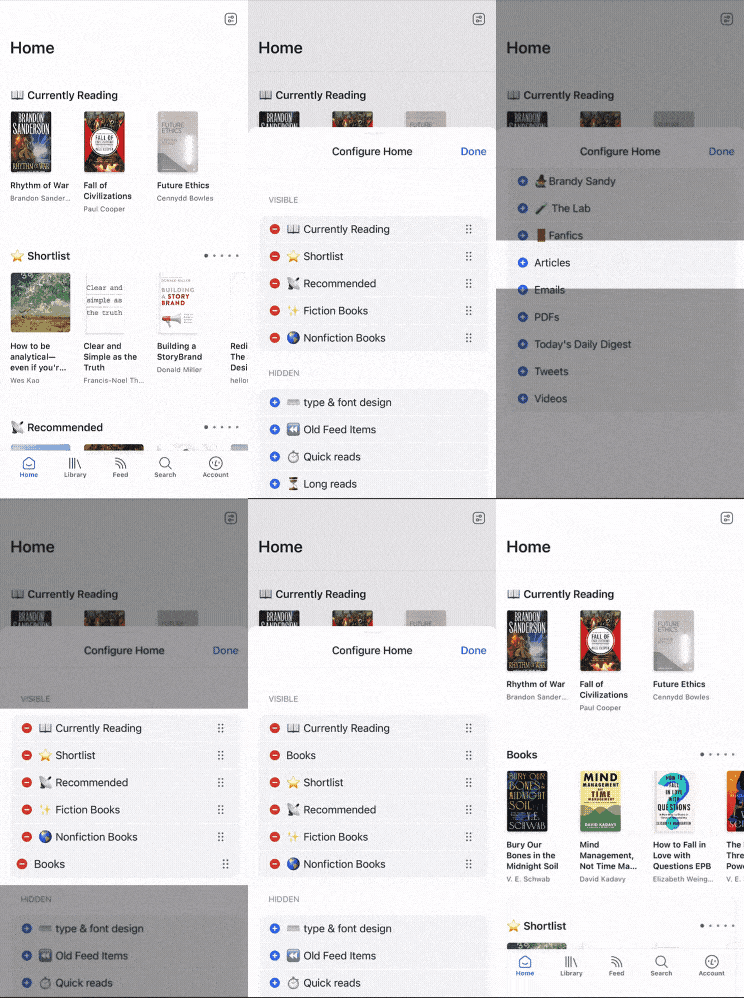
For easy and immediate access to your books, you can pin the default "Books" view to the top of your Home page.
To do so, tap the configuration icon in the top right of the Home screen. Locate the "Books" view and tap it to add it to the pinned views. Once you've added it, use the dots to the right side of the view's name and drag to re-order it in the list.
Set the default view to "Currently reading"
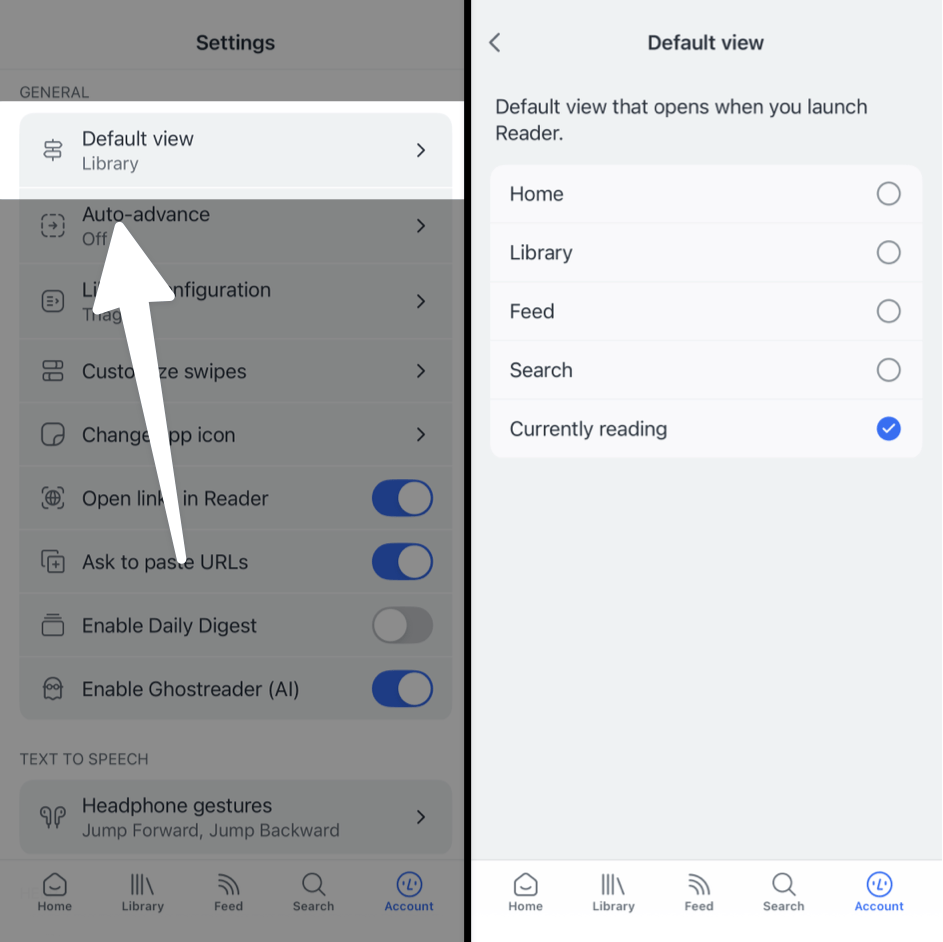
If you'd rather skip the Home screen entirely, you can set your default view to "Currently reading". This will make it so that, when you open the Reader app, it will immediately load into the document you were last reading.
You can do this from the Account section of the app. Under General, select the Default view option. Then select Currently reading from the list of options.
FAQs
I want to listen to my book with text-to-speech (TTS) but the play button is missing. Can I still use TTS?
Yes! When using long-form reading mode, which is the default for EPUB files, the Appearance menu is promoted to the top right location where the TTS play button would be in the standard reading mode.
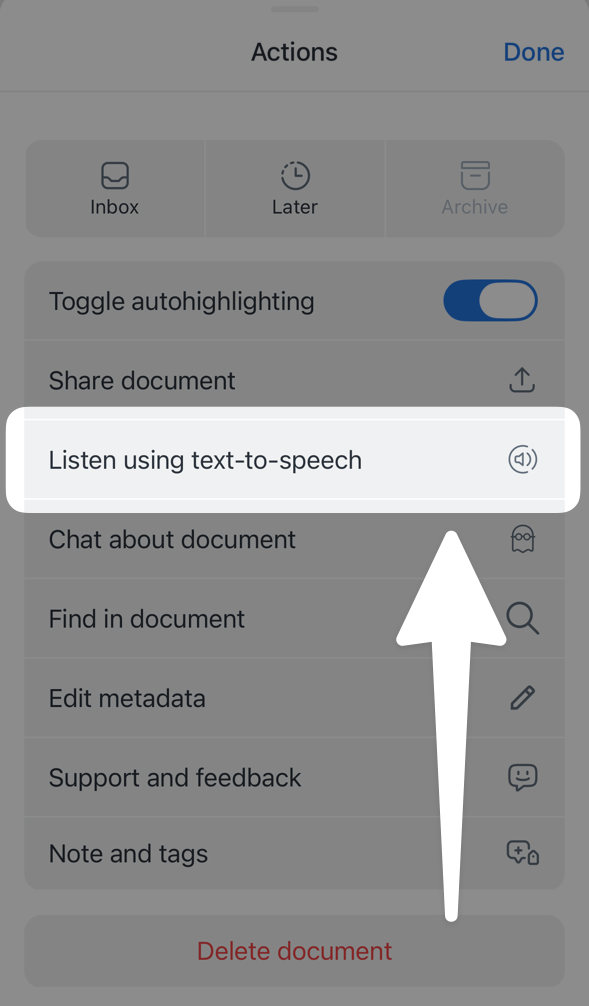
To use TTS, open the action menu (...) in the lower right and tap Listen using text-to-speech in the list.
Can I use my volume buttons to turn pages?
If you're using an Android device and you want to use your device's volume buttons to turn the pages of a book while reading in paged scroll mode, you can turn on the option in Reader's settings.
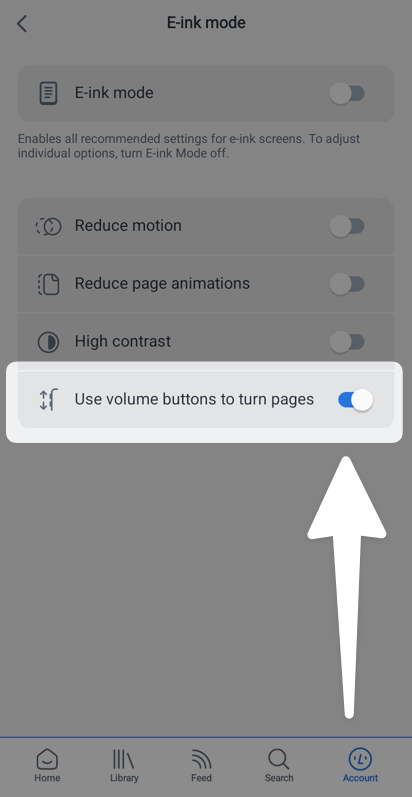
Go to the Account section of the app, then tap into the E-ink Mode menu. If you're not using an e-ink device, you can leave the top toggle turned off. Instead, just turn on the last option: Use volume buttons to turn pages.
This setting will also work if you're reading in continuous scroll mode, but instead of "turning the page", it will jump you down one screen's worth of text.
This option is not available on iOS devices.