


Chat with your documents
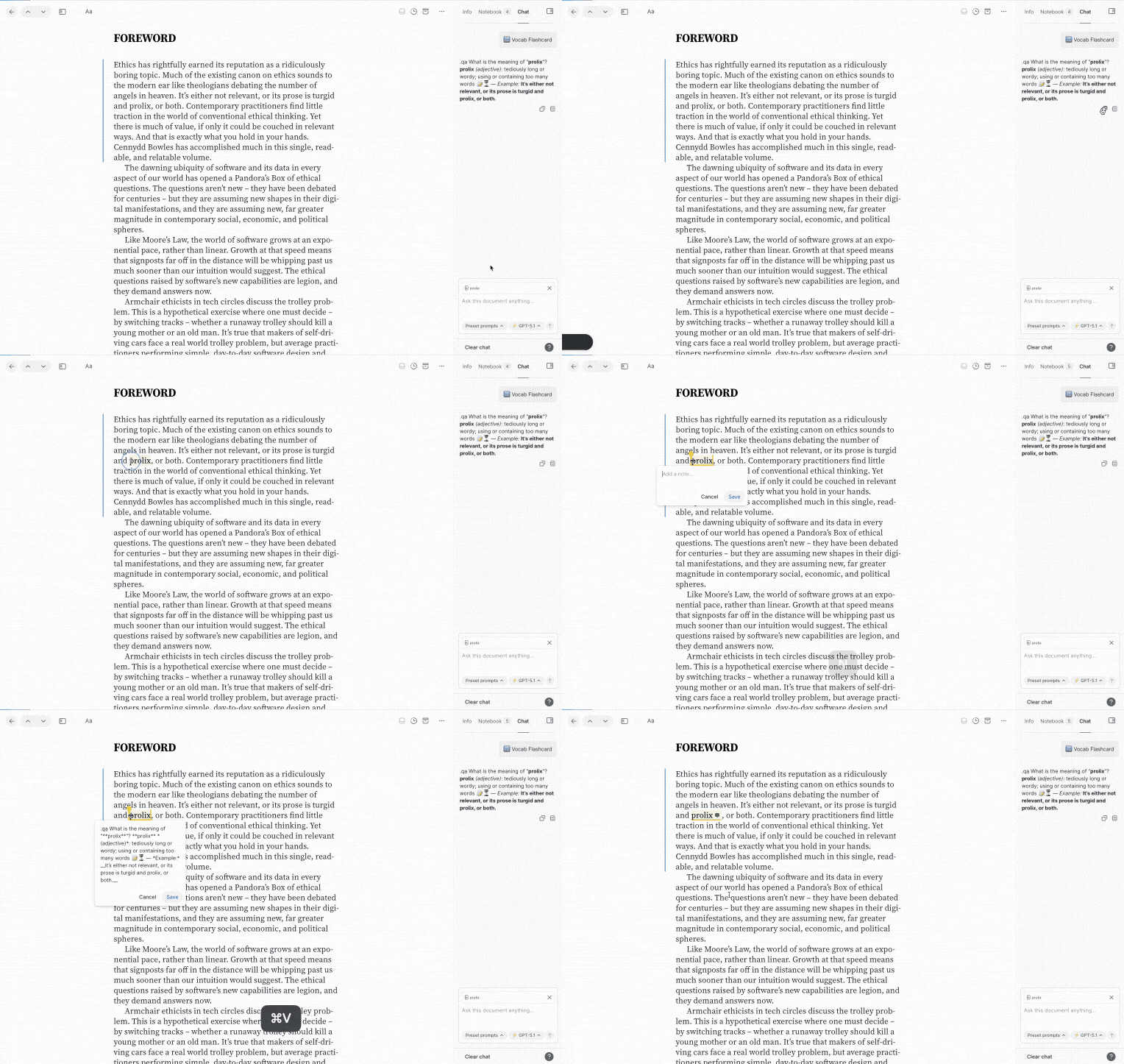
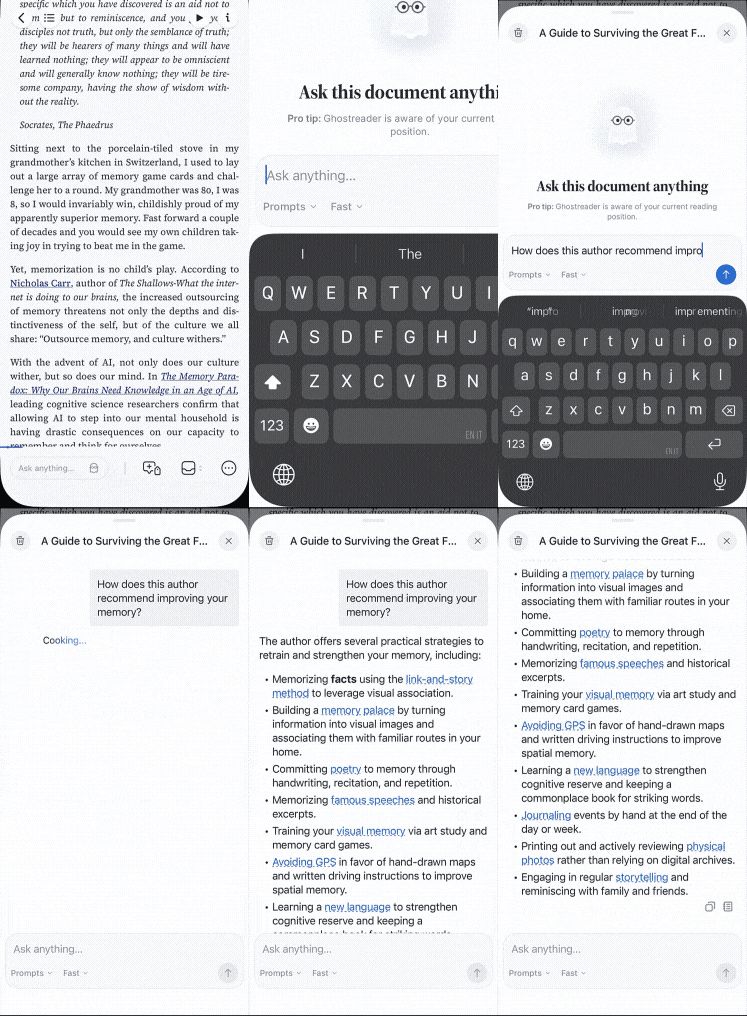
Reader's Chat feature lets you chat with the document you're reading on web, desktop, and mobile. Ghostreader has access to the document's content, its metadata, and your reading position, so it's more effective than a one-off prompt at pulling out detailed information, clarifying questions that come up as you read, and applying the author's ideas to your own situation. It also remembers the conversation so far, so you can naturally ask follow-up questions.
Using Global Ghostreader?
This page covers single-document chat. In the mobile app, this is the only chat mode currently available. On web and desktop, it's the mode you'll see when the Global Ghostreader toggle is turned off in your Ghostreader preferences.
With Global Ghostreader turned on, chat on web and desktop searches across your whole library, answers with citations, and keeps a conversation history, and the sidebar chat gains skills and tools.
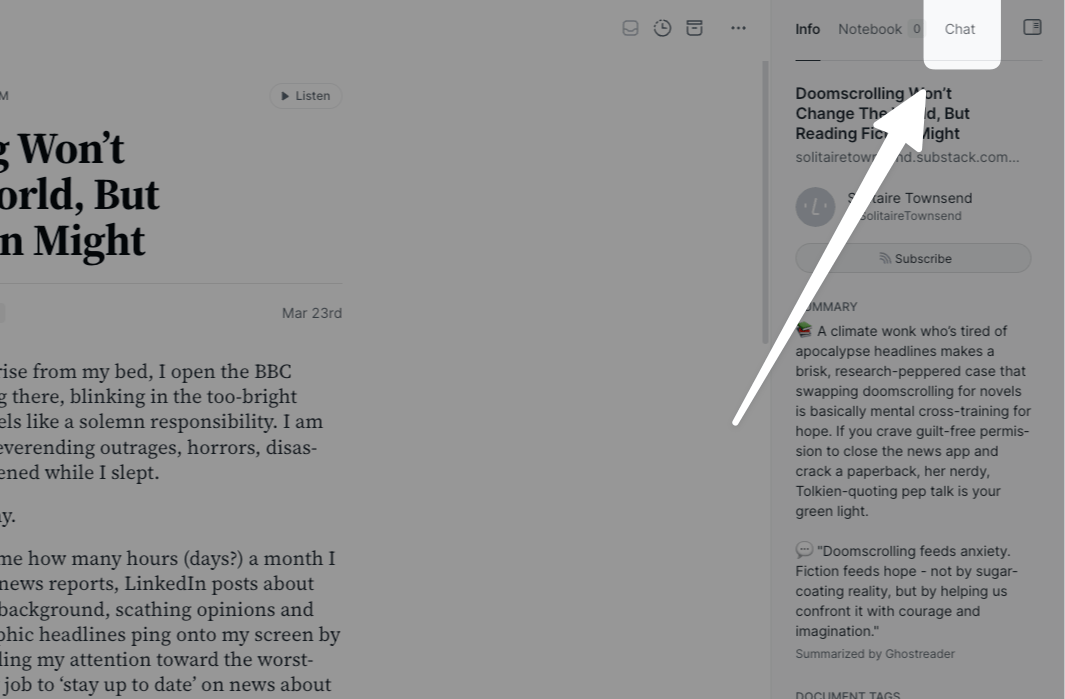
To access the chat on web or desktop, open any document and click Chat in the right sidebar (or hit the backtick ` twice to cycle between the panels).
In the mobile app, there are a couple of ways to start a new chat.
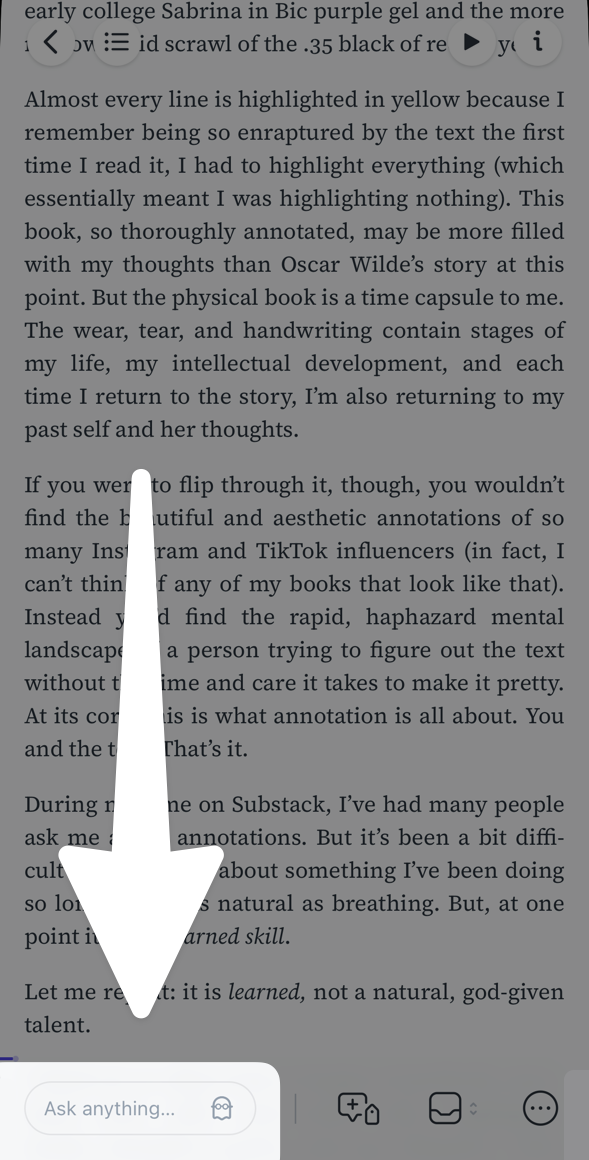
- Tap the Ask anything... field in the bottom toolbar. This field is part of the modern toolbar layout.
- Open the actions menu (
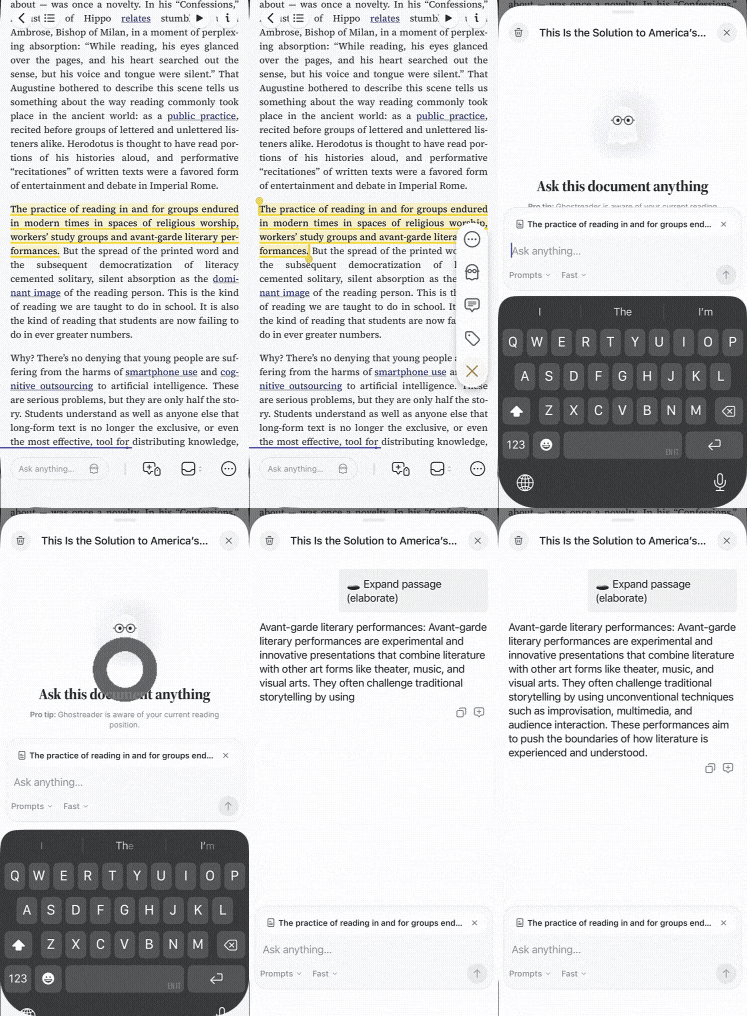
...) in the bottom right and tap Ghostreader. - To ask about a specific passage, tap a highlight (or select some text) and tap the ghost icon in the annotation bar. The chat opens with that highlight attached, so Ghostreader's answers and preset prompts focus on it.
The conversation opens in a sheet that slides up over the document. When you're done chatting, swipe the sheet down or tap the X in the top right to get back to reading.
If you don't see any of these options, check that Ghostreader is turned on for your account.
Save chat responses
If you get a particularly useful or evocative response while chatting, you can save it to the document's note field. Not only will this separate the note out from the chat interface, it will also allow it to be synced to Readwise with the rest of the document's notes and highlights.
To save a response to the document note, click or tap the notebook icon below the response.
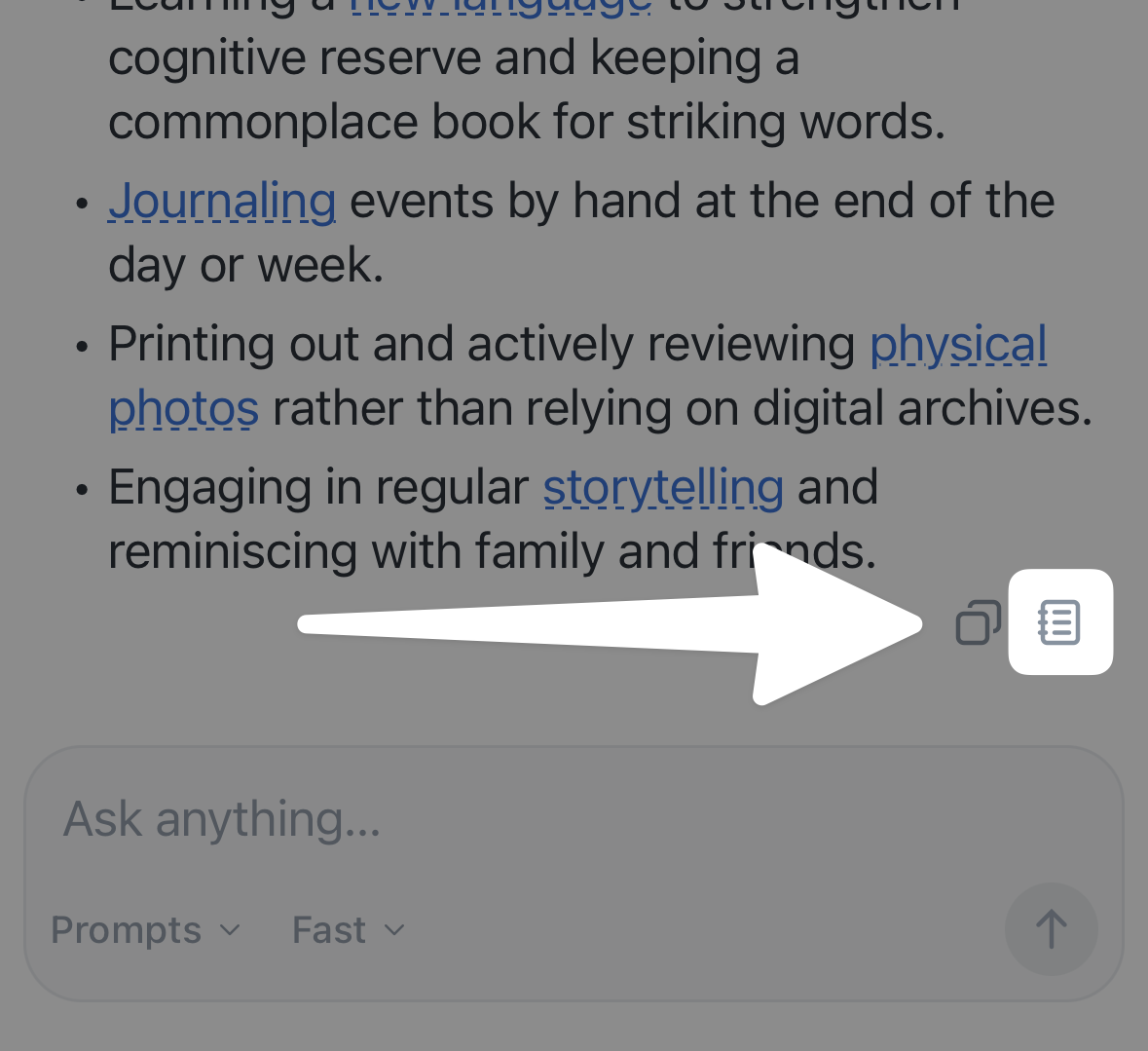
Additionally, you can use the Copy icon to save the response to your clipboard for use elsewhere.
Change the model
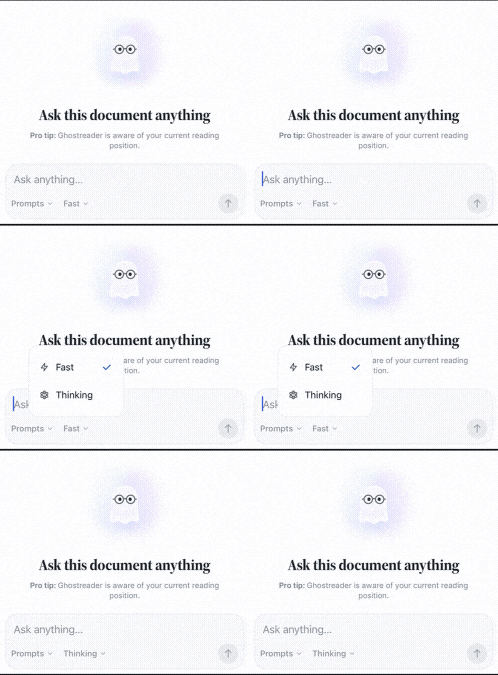
Chat includes two models with your subscription: Fast, which uses lower thinking for quick replies, and Thinking, which trades some speed for more thorough reasoning. To switch between them, open the model dropdown at the bottom of the chat field. It's labeled with the name of the model currently in use.
Clear the chat history
If at any point you'd like to start fresh with a new chat, you can erase the current conversation. This removes all of the current responses, so make sure you've copied or saved anything you might want to keep first!
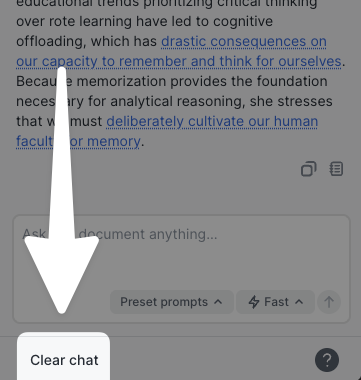
On web or desktop, click Clear chat at the bottom of the Chat panel.
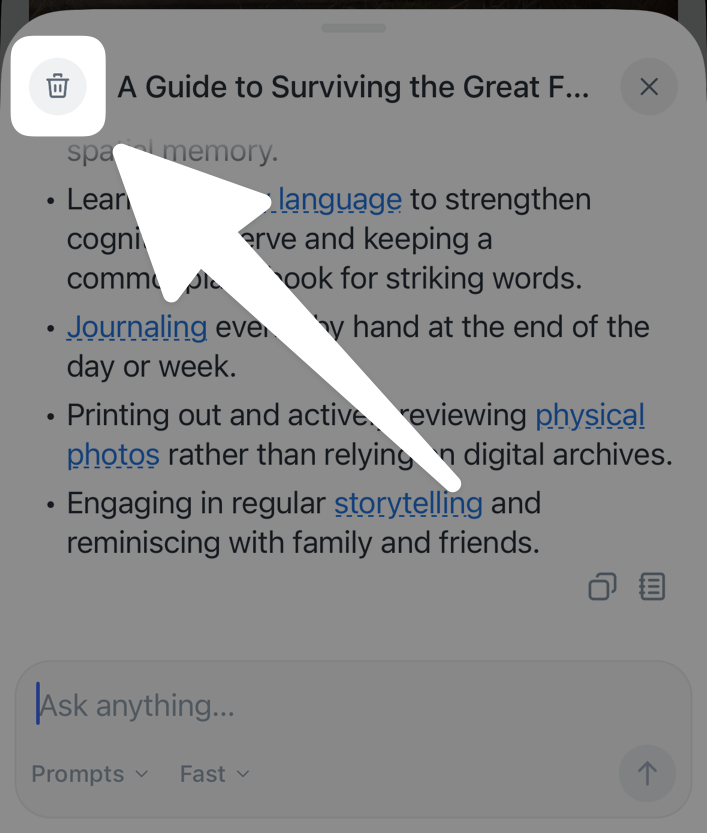
On mobile, tap the trash icon in the top left of the chat sheet.
Cleared a chat on mobile?
If you have Global Ghostreader turned on in the web app, your mobile conversations sync to your conversation history there, including ones you've cleared.
Use preset prompts
Ghostreader comes loaded with a variety of default prompts, and you can also customize them or create your own.
To use a preset prompt on web or desktop, open the Preset prompt dropdown at the bottom of the chat window and select the prompt you'd like to run.
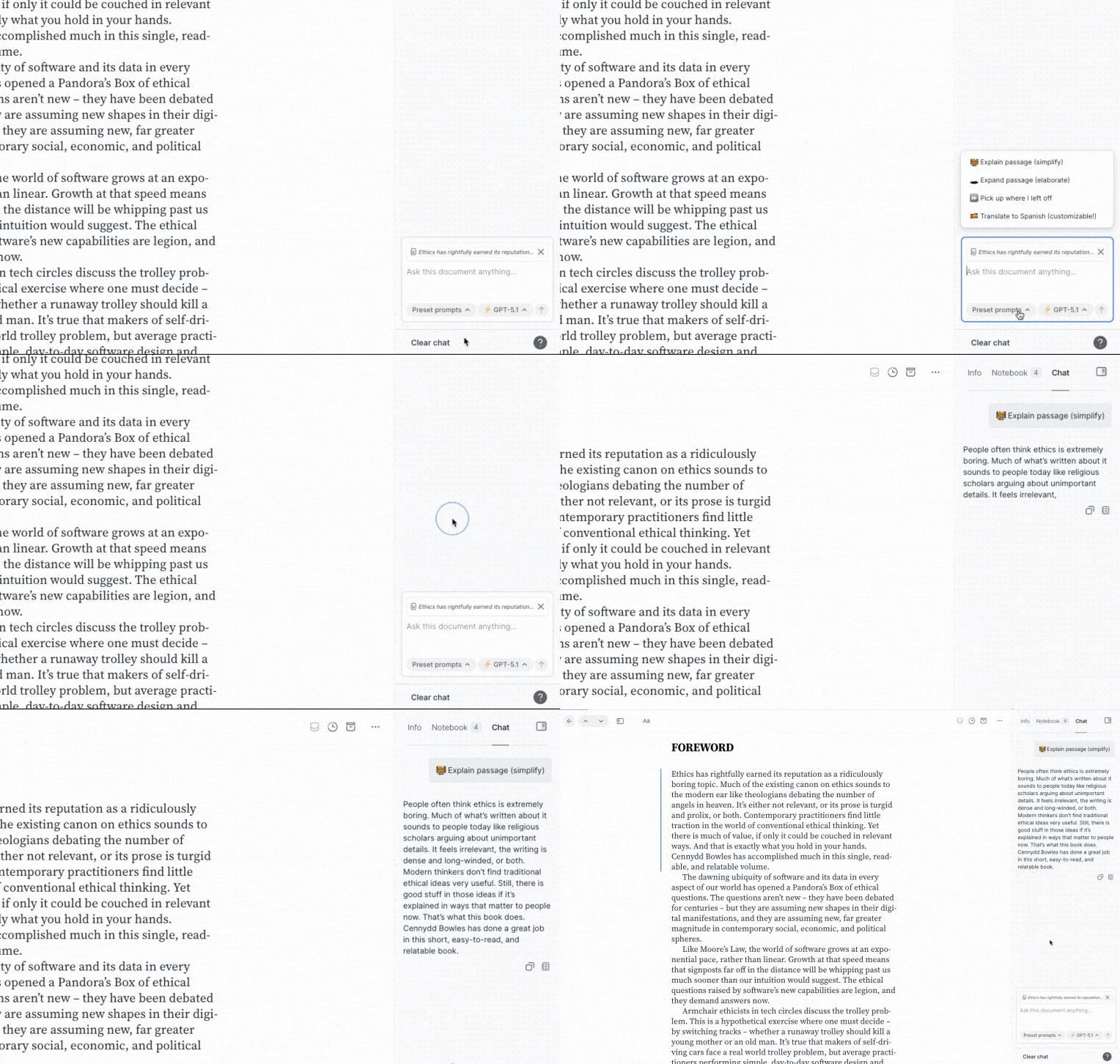
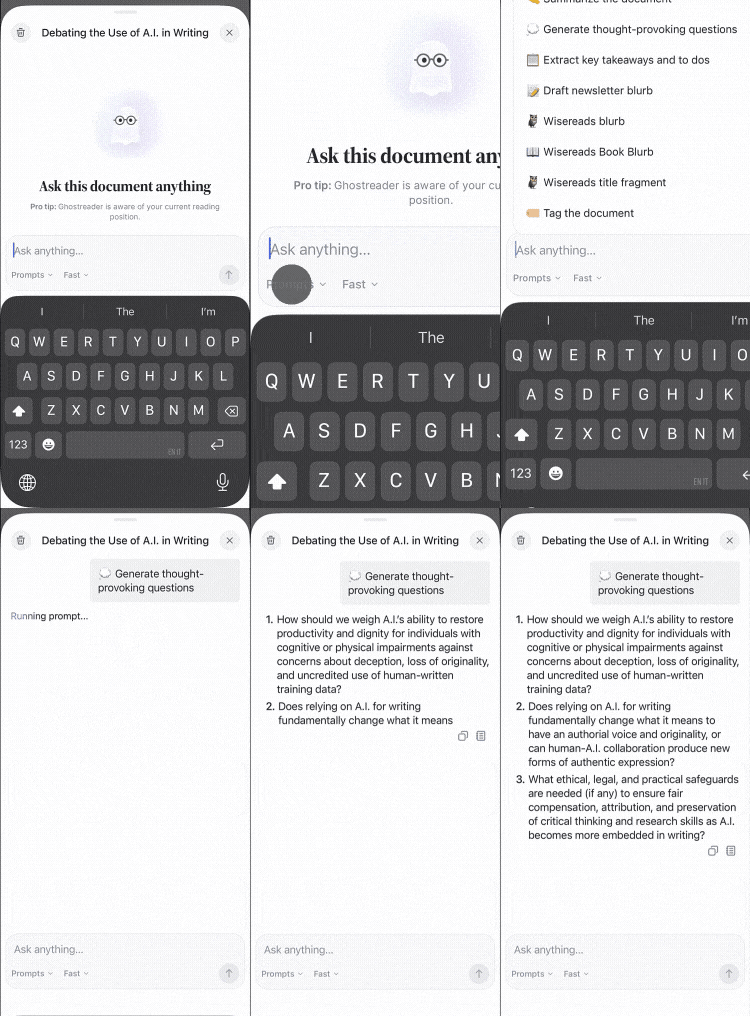
On mobile, open the Prompts dropdown at the bottom of the chat sheet and tap the prompt you'd like to run.
The preset options will vary based on the scope of the selected text. That is to say, you'll see a different set of options if you have a word or two selected in the document versus if you have a full sentence or paragraph selected. If you have nothing selected, the listed prompts will be for the full document content. On mobile, start the chat from a highlight's annotation bar to see the prompts for that passage.
On web and desktop, you can quickly access the preset prompts with the G keyboard shortcut for selected words or passages, or use shift + G to run a prompt on the full document.
Note that preset prompts use the model set for them on the Ghostreader preferences page, not the model currently selected for the chat.
If you'd like to save a particular chat response as a highlight note, you can use the Copy option below the response, then edit the highlight note and paste the Ghostreader response. On web and desktop, the N keyboard shortcut opens the note field for the selected highlight.