



How to choose a Library configuration
Choosing the right Library configuration helps you organize saved documents in a way that matches your reading style and workflow.
By default, your Library is organized into Inbox, Later, and Archive, but this setup isn't one-size-fits-all. In this guide, you'll learn how to choose a Library configuration that works for you.
Change your Library configuration
Depending which version of Reader you're using, there are a few ways to change your Library configuration.
If the change will cause any documents to be moved (e.g. from Inbox to Later), you'll see a confirmation pop-up before the change is made.
This choice isn't permanent. You can switch between configurations at any time to see which one best fits your reading habits. Experimenting is the best way to find your ideal setup.
On web or in the desktop app
On web, there are two ways to change which configuration your Library uses.
From the Library view
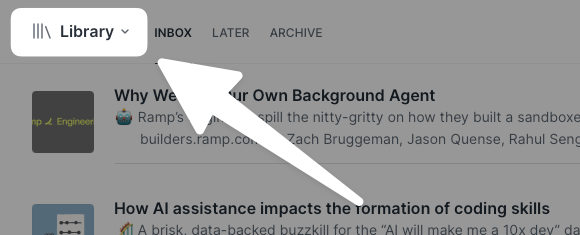
- Click the dropdown arrow next to the Library title at the top of the page.
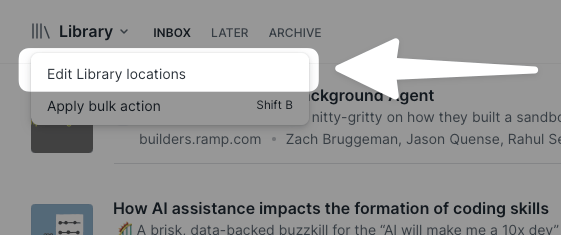
- Select Edit Library locations from the menu.
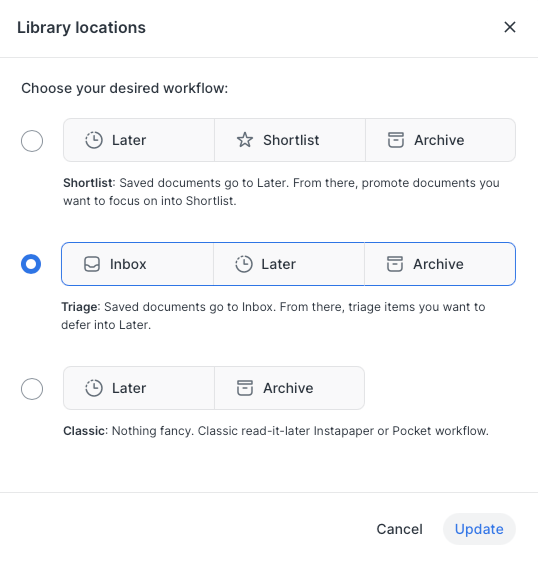
- In the Library locations modal, select your desired workflow and click Update.
From your account preferences
- Go to your preferences page in the Reader app.
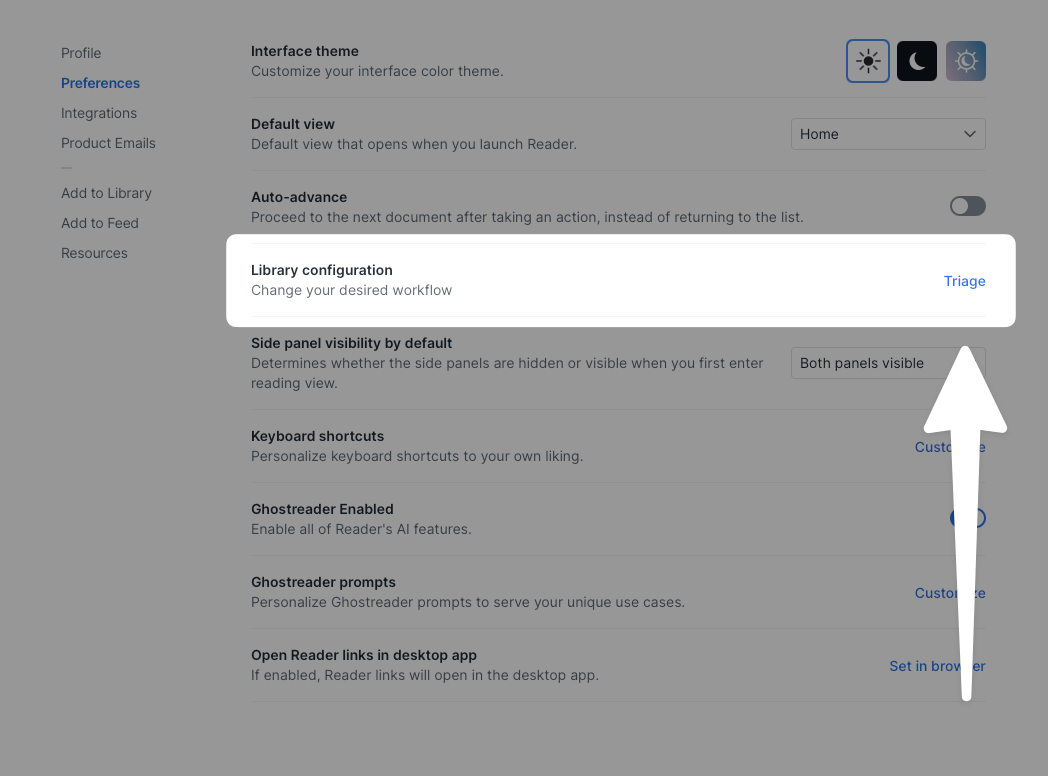
- Click the blue text to the right of the Library configuration option. (The text will display the name of your current configuration, e.g. "Triage".)
- In the Library locations modal, select your desired workflow and click Update.
In the mobile app
On mobile, you can change your Library configuration from your account settings.
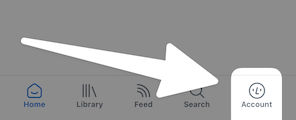
- Go to the Account tab of the app.
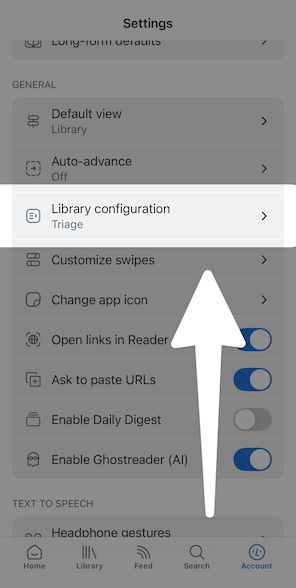
- Scroll down to the Library configuration option.
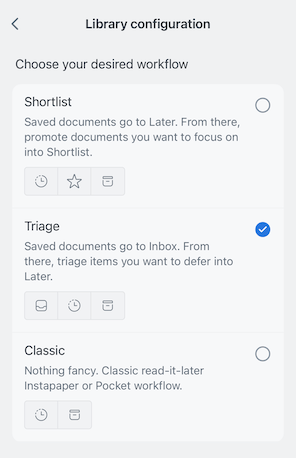
- Tap the option for your desired workflow.
How each configuration works
Your Library is where all saved documents live. To help you manage this content, Reader has three distinct organizational workflows. Each configuration uses different primary locations to sort your content.
Triage
Workflow: Inbox → Later → Archive

The Triage configuration is the default and is designed for productivity-focused users who prefer an "inbox zero" approach. It treats every new document as an item to be processed.
This configuration consists of three locations: Inbox, Later, and Archive. All newly saved documents land in your Inbox, where you can process them one at a time by deleting, archiving, or moving them to Later for future reading.
Keyboard shortcuts
- Inbox:
shift + E - Later:
L - Archive:
E
Shortlist
Workflow: Later → Shortlist → Archive

The Shortlist configuration helps you separate your immediate reading priorities from your general backlog.
This configuration uses three locations: Later, Shortlist, and Archive. Newly saved items go to Later, which acts as an "anti-library" of everything you might want to read eventually. From there, you can promote high-priority items to your Shortlist, which serves as your active reading queue.
This setup is for readers who prefer to curate a small, focused list of high-priority items. It separates your "must-read" content from your "might-read" content, and can be handy if you save a lot of content but want to focus only on a select few items at a time.
Keyboard shortcuts
- Later:
L - Shortlist:
S - Archive:
E
Why do I still see a Shortlist view when I'm using the Triage configuration?
Some users like the structure of the Triage configuration but still want to be able to curate a selection of documents they want to make sure they read first. For this reason, Reader includes a default view called ⭐ Shortlist.
This default view allows you to use a tag to earmark documents, regardless of which Library location they're in. On web or desktop, you can even quickly add the shortlist tag using the keyboard shortcut S.
Classic
Workflow: Later → Archive

The Classic configuration offers the simplest workflow, similar to traditional read-it-later apps like Instapaper or Pocket. It's great for minimalists who don't want extra sorting steps.
This configuration uses just two locations: Later and Archive. All new documents are saved to Later. Once you've finished reading an item, you can move it to Archive for permanent storage and future reference.
Keyboard shortcuts
- Later:
L - Archive:
E
Why your configuration matters
Your library is your personal knowledge space. Choosing a configuration that fits your natural tendencies reduces friction and helps you avoid content overload. The right setup makes it easier to engage with the content you save, ensuring nothing important gets lost.
Best of all, you can switch between these configurations at any time. Your documents will be automatically moved to the appropriate location in the new workflow. Feel free to experiment to find what works best for you.