



Quick Lookup
Quick Lookup is a fast way to define, look up, or translate a word or short phrase while you're reading in the Reader mobile app. When you select a word or short phrase (1-3 words), a panel slides up from the bottom of the screen and explains your selection inline, so you don't need to run a Ghostreader prompt or leave the page.
Mobile only
Quick Lookup is available in the Reader mobile app. On web and desktop, use Chat or the default Ghostreader prompts for the same kinds of lookups.
The panel opens to the most relevant tab for the selected word or phrase, and you can switch between Define, Lookup, and Translate at any time. Quick Lookup is powered by Ghostreader, so it needs Ghostreader enabled and an internet connection to work.
Define a word
The Define tab gives you a dictionary-style definition of the word or phrase you selected. It's the default for everyday words and for names of people, places, and concepts.
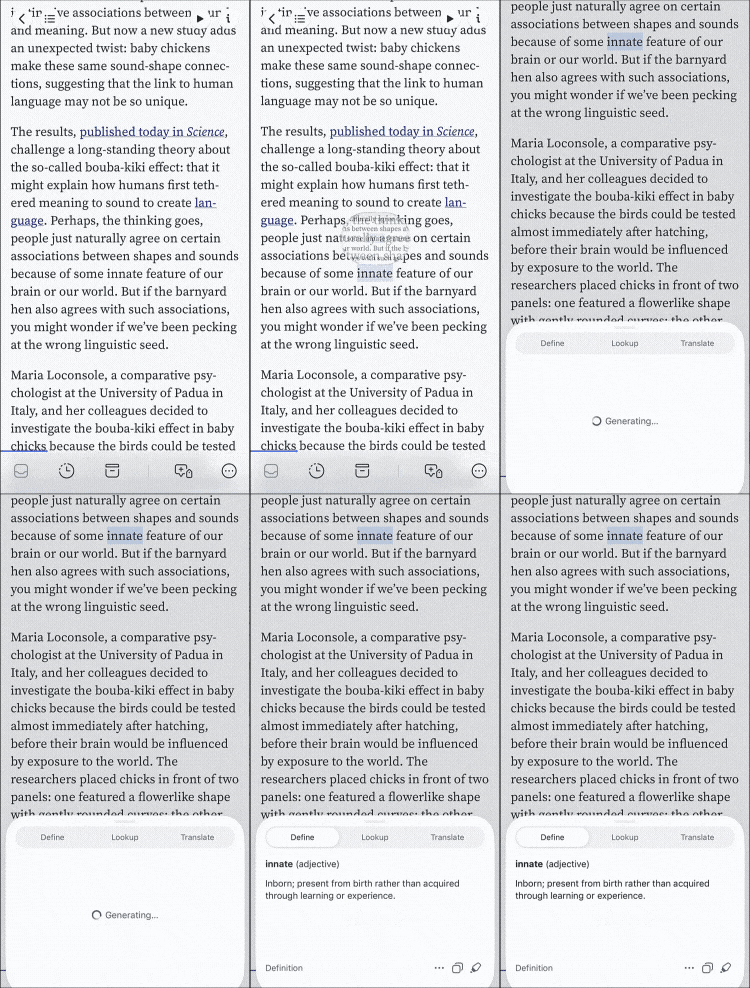
Look up a term in context
The Lookup tab explains your selection in the context of what you're reading, which is handy for characters, places, or domain-specific terms that a plain dictionary won't capture.
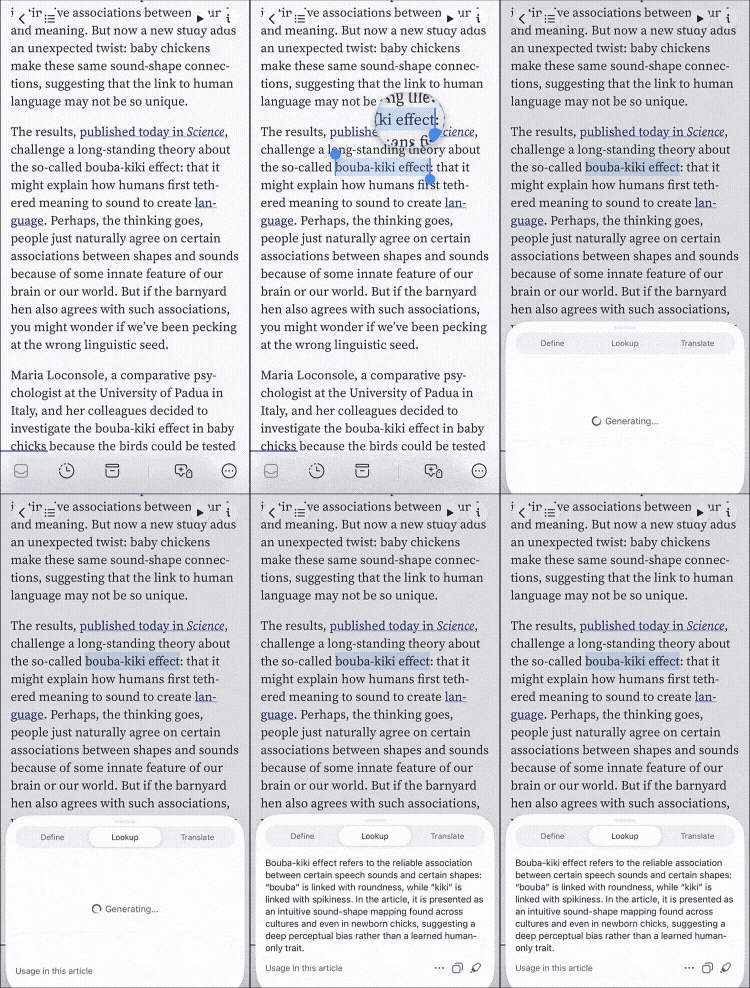
Translate a word or phrase
The Translate tab translates your selection into any language. Tap the name of the language at the bottom of the panel to change it.
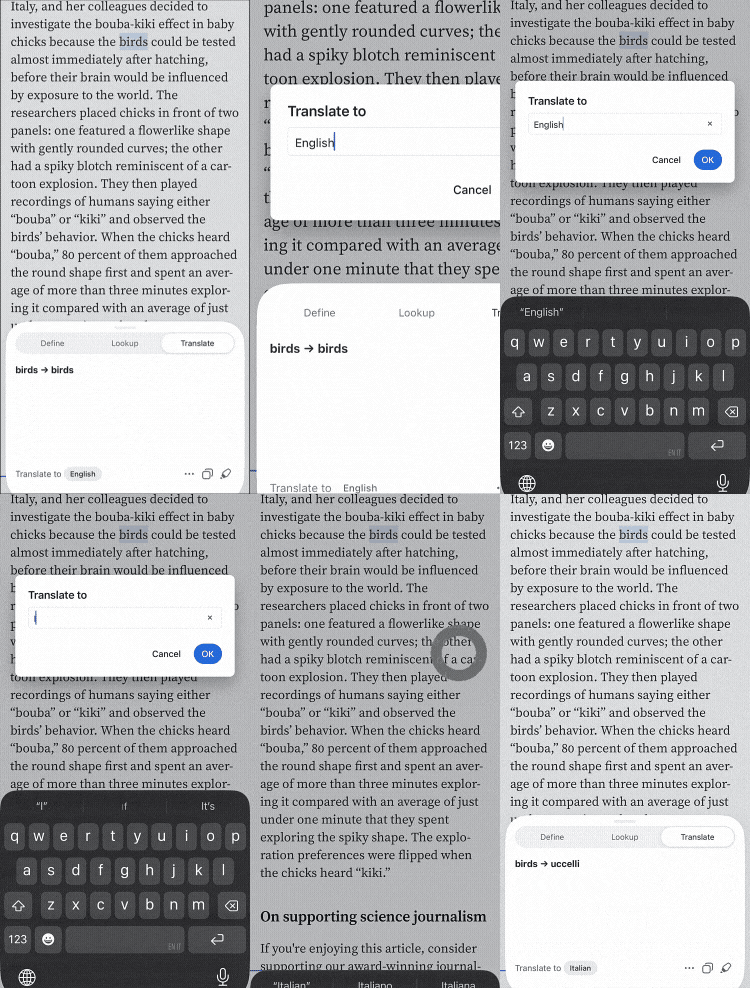
You can type in any language or dialect you want, so it doesn't have to be a standard one. Try translating into something playful like Quenya, Jar Jar Binks, or Pirate.
Save, copy, or dismiss a result
By default, Quick Lookup just shows the result in the panel, so it won't clutter your notebook unless you want to keep it. The footer of the panel gives you three controls:
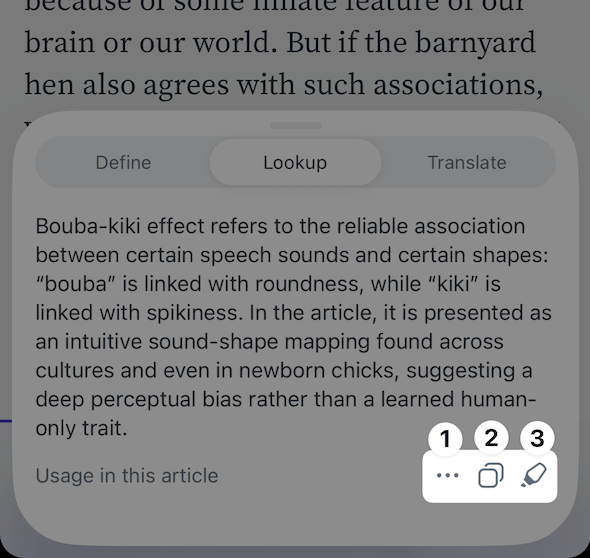
- The options menu (
...) lets you turn the feature off with Disable Quick lookup. - Copy copies the result to your clipboard so you can paste it elsewhere.
- Highlight saves your selection as a highlight and attaches the result as its note, so it syncs to Readwise with the rest of your highlights.
To close the panel without saving anything, tap outside of it or deselect the text.
Turn off Quick Lookup
If you'd rather keep the previous behavior, where selecting a word opens the standard selection menu, you can turn Quick Lookup off in two places:
- In the Quick Lookup panel, tap the options menu (
...) and choose Disable Quick lookup. - Go to the Account page and toggle off Quick lookup under the Reading View section.
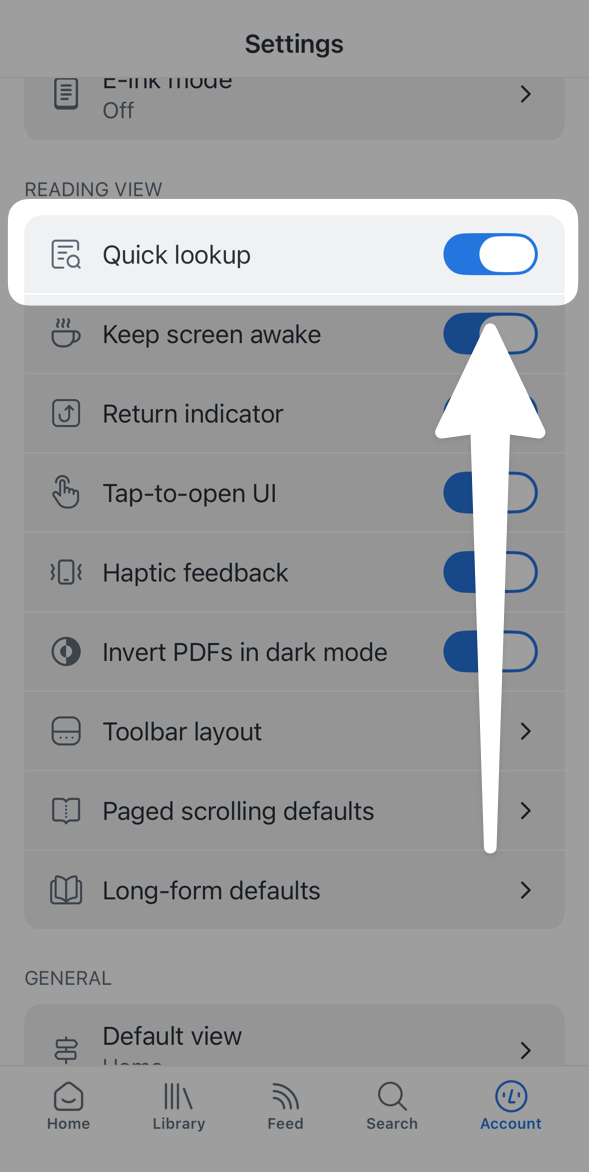
You can turn it back on at any time from the same settings page.