


Global Ghostreader
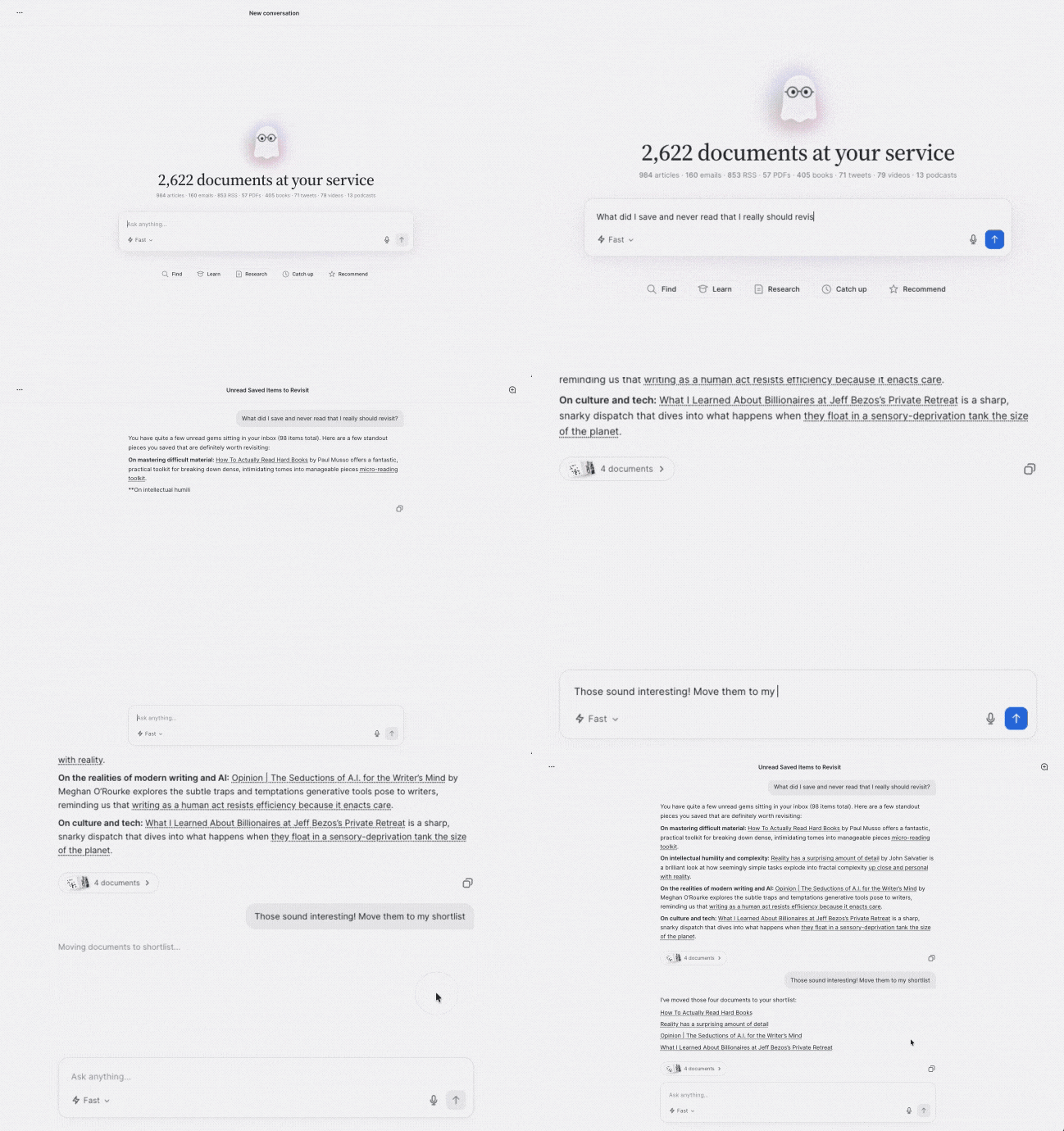
Global Ghostreader is a library-wide research assistant for Reader on web and desktop. Ask a question and Ghostreader searches across your entire library, pulls out the relevant passages, and answers with citations that link straight to the source. It also includes skills (reusable tasks written in plain language) and tools (actions Ghostreader can take on your library, with permissions you control).
Web and desktop only
Global Ghostreader is available in the web and desktop apps. In the mobile app, you can still chat with an individual document.
Turn on Global Ghostreader
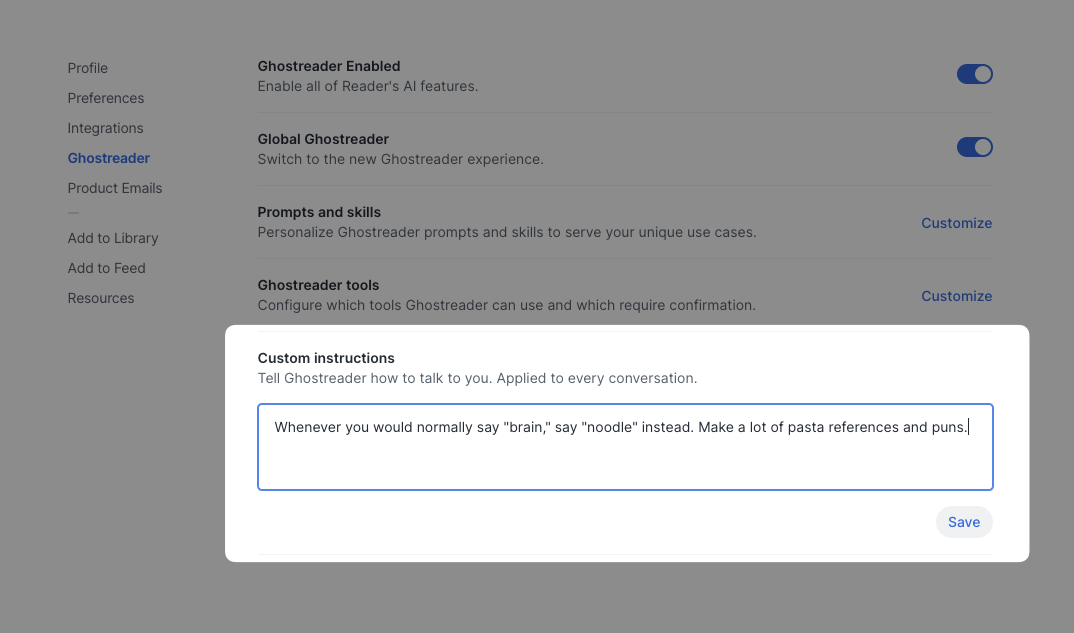
If you don't see Ghostreader listed above the Library in your left sidebar, go to your Ghostreader preferences and turn on the Global Ghostreader toggle. The toggle sits just below Ghostreader Enabled, and it only appears when Ghostreader is enabled for your account.
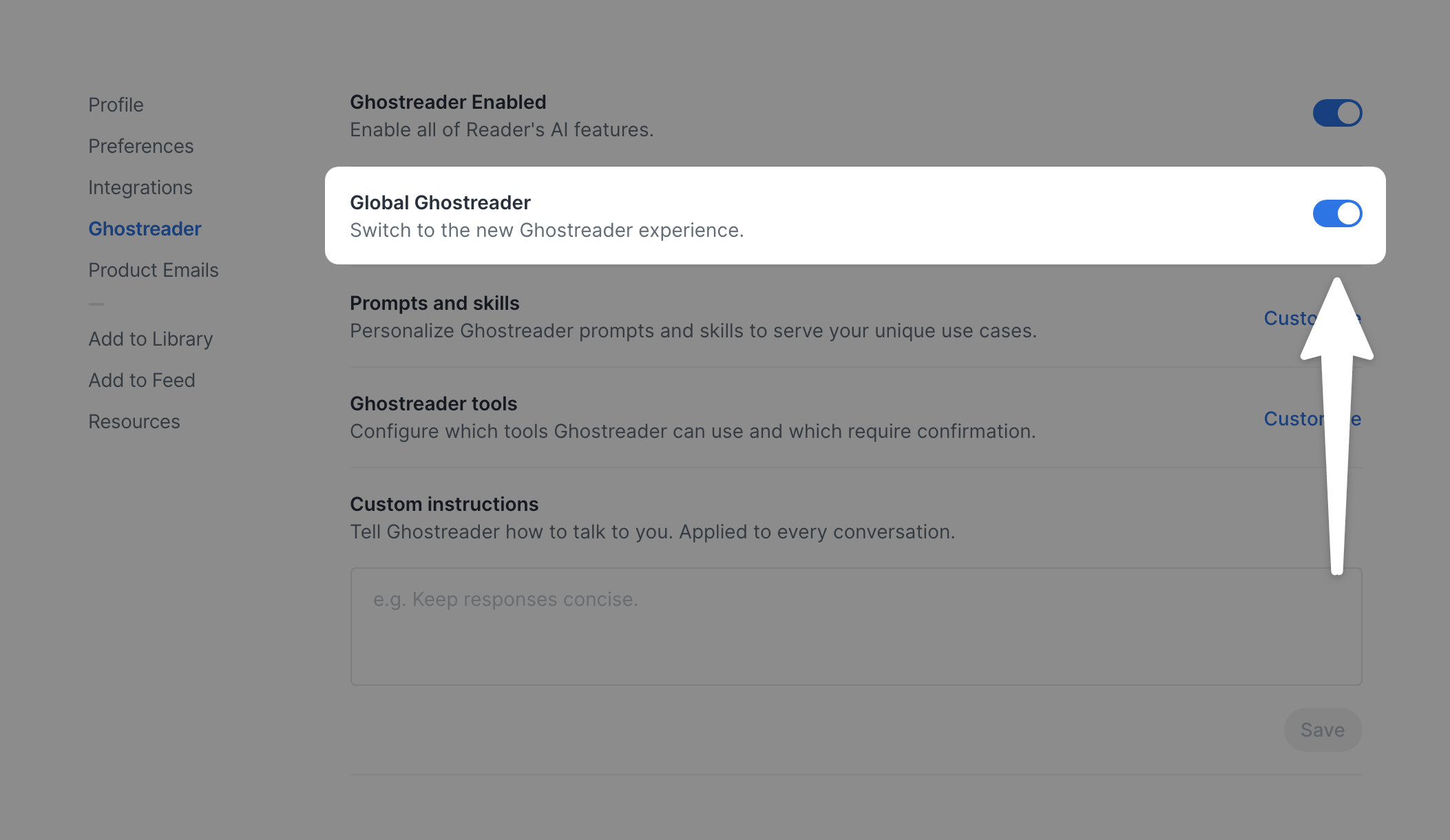
With the toggle on, you'll find a few additional options on the same preferences page: Prompts and skills, Ghostreader tools, and a Custom instructions field. Each is covered below.
Start a conversation
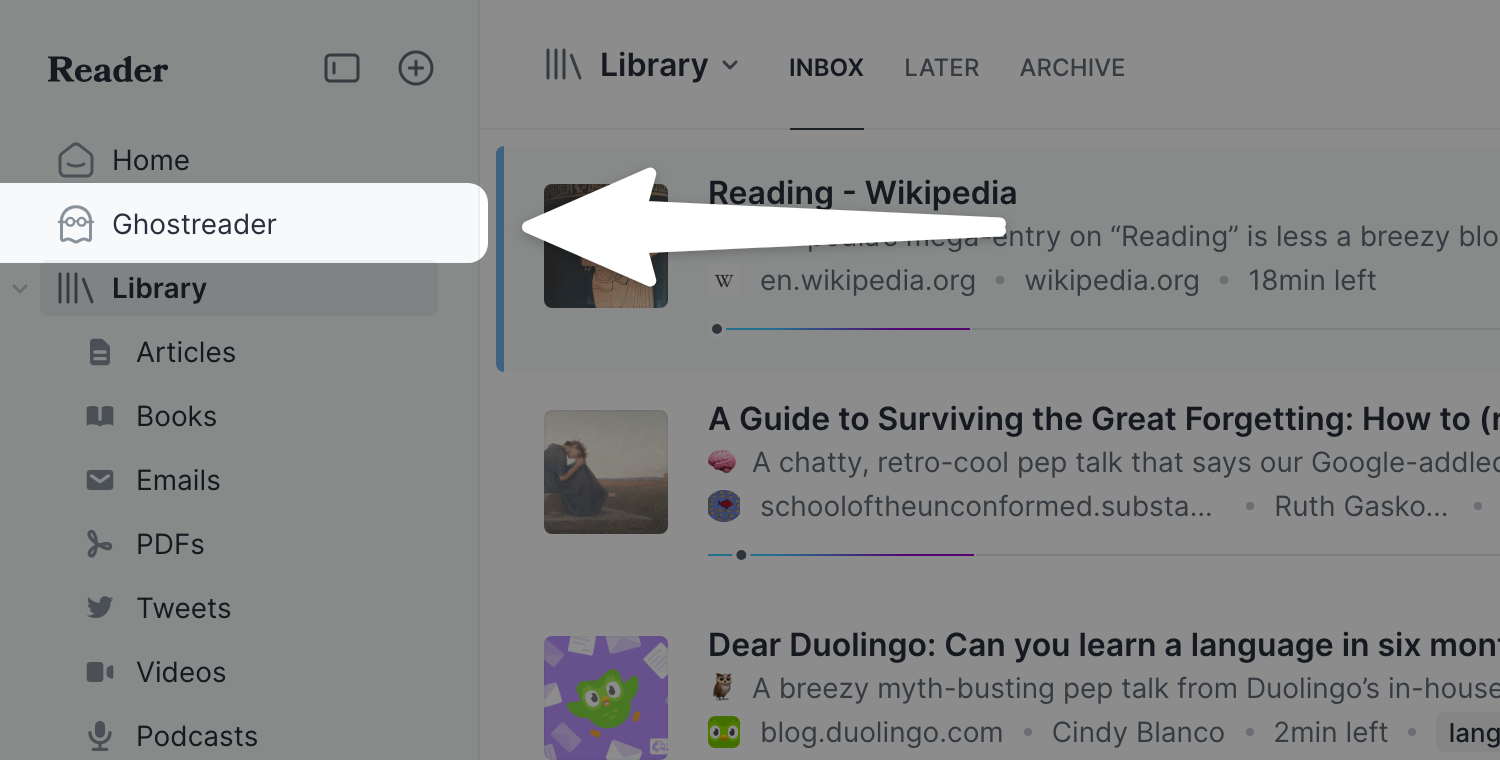
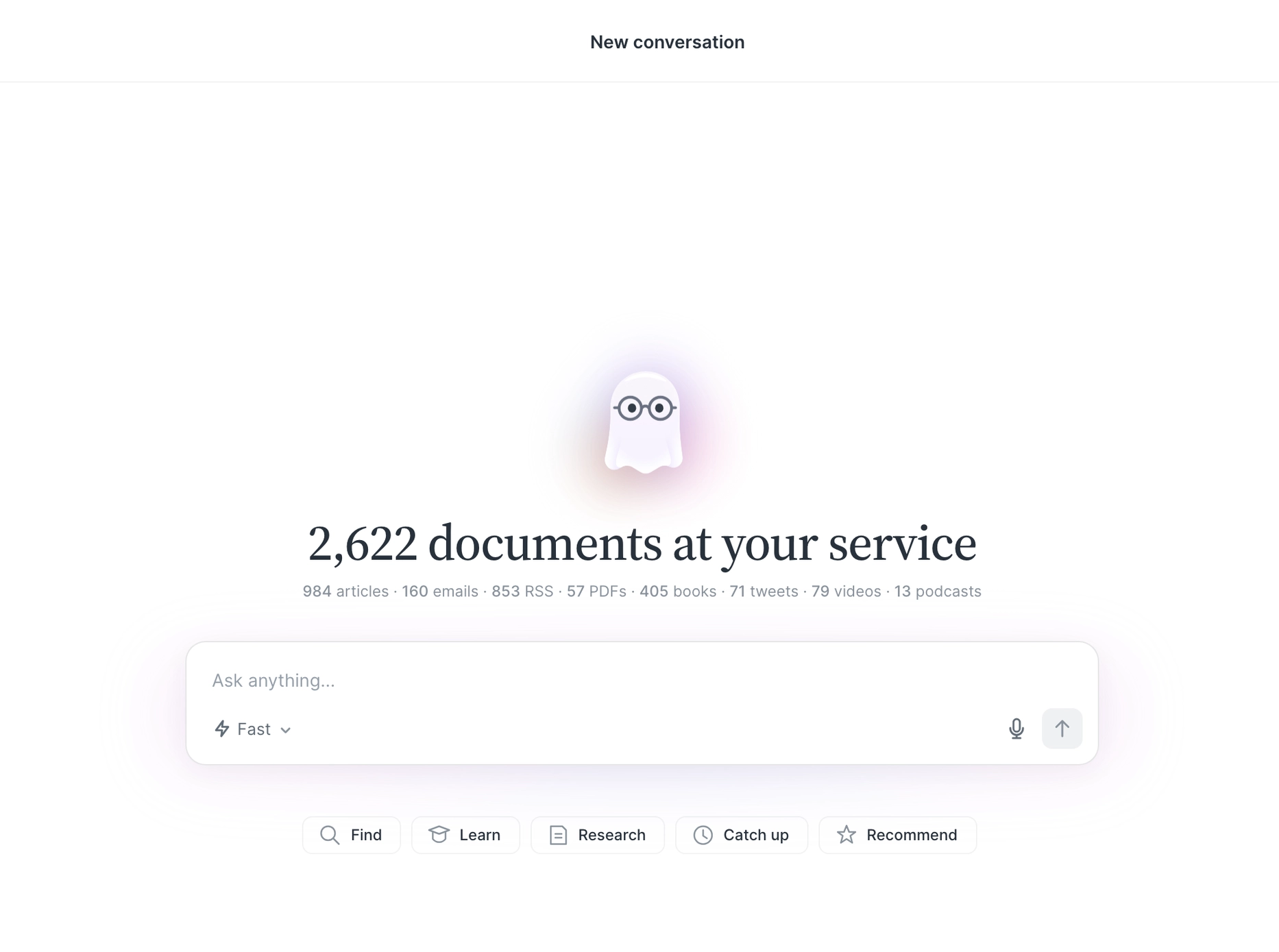
To open the global chat, click Ghostreader in the left sidebar, directly below Home.
Type your question into the Ask anything... field. If you're not sure where to begin, the suggestion chips beneath the input offer some starting points.
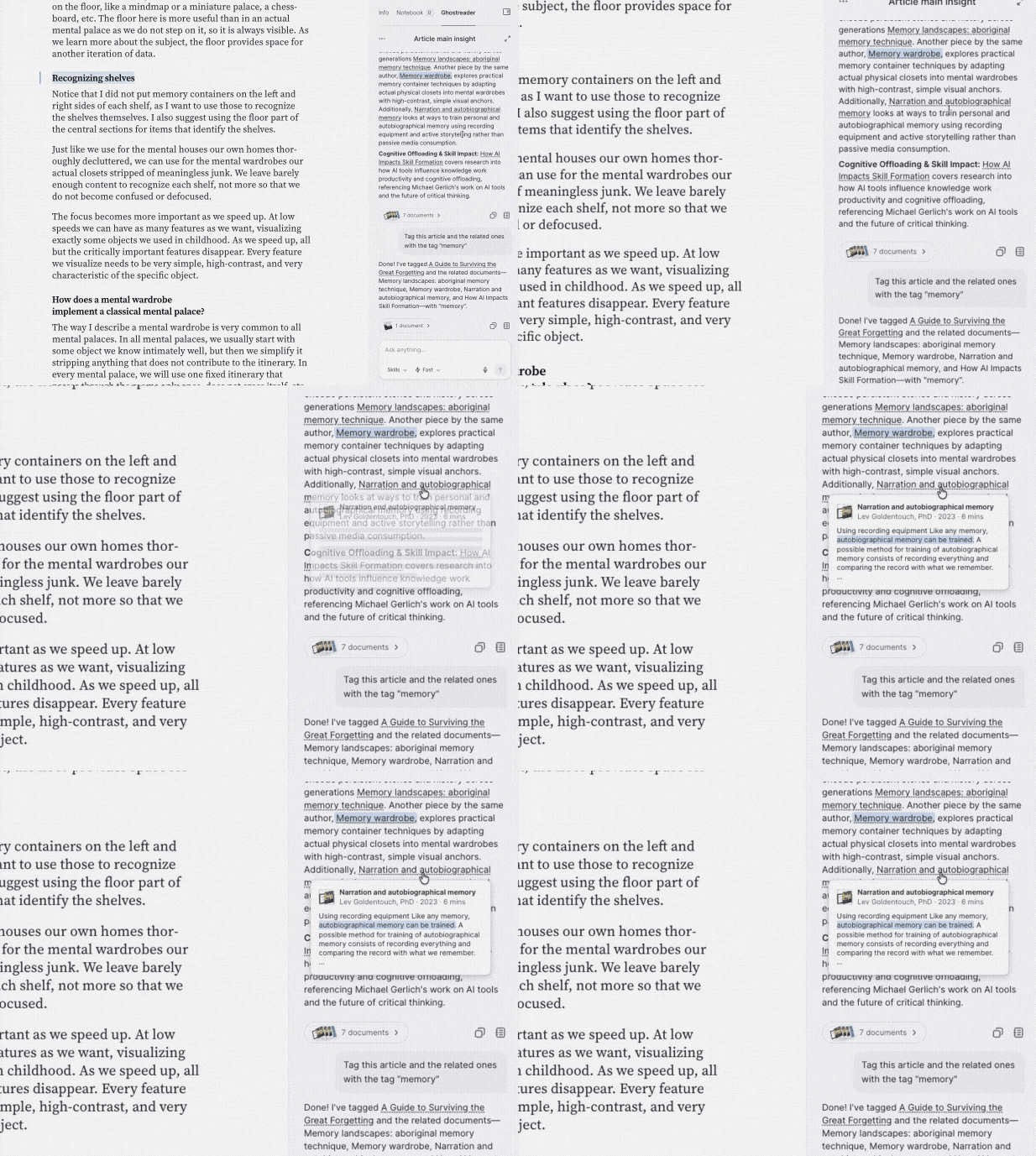
Ghostreader searches across your whole library, finds the relevant passages, and answers with per-passage citations. Hover over a reference to preview the exact line it came from, or click it to jump to that spot in the source document.
Choose a model
Global Ghostreader includes two models with your subscription: Fast, for quick answers, and Thinking, which trades some speed for more thorough reasoning. To switch between them, click the model picker in the bottom left of the chat input.
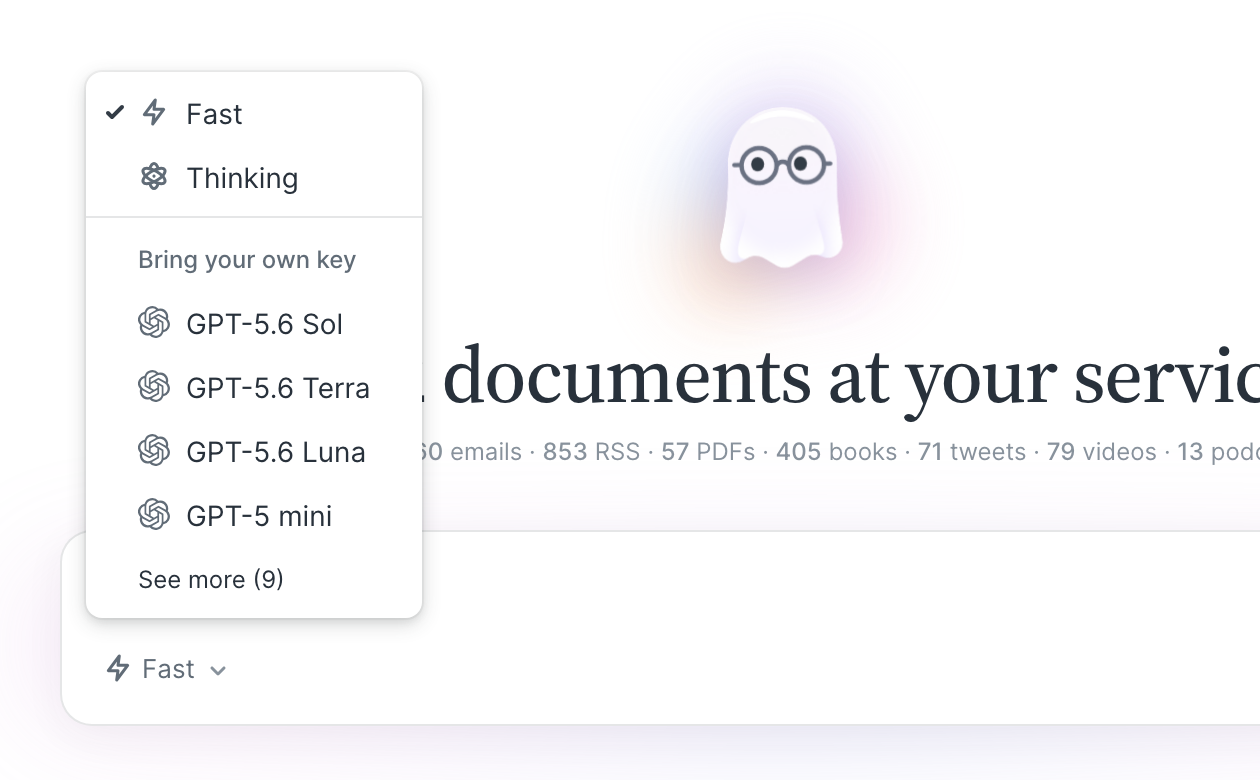
If you've added your own OpenAI API key, you'll also see additional models to choose from under Bring your own key.
Run skills
Skills are reusable Ghostreader tasks, written in plain language, that work on individual documents or across your whole library. Global Ghostreader comes with some predefined skills, including universal skills like Research Topic, Tag Documents, Triage Inbox/Feed, and Find Similar, plus single-document and passage-level skills like Translate and Explain Passage. You can edit any of the default skills, or create new skills for your own custom workflows.
In the main Ghostreader view, the suggestion chips beneath the input put skills to work for you. When you're chatting in a document's sidebar, you can also pick a skill directly from the Skills dropdown in the chat input. And, at any point during a conversation, you can access your skills via slash commands (/).
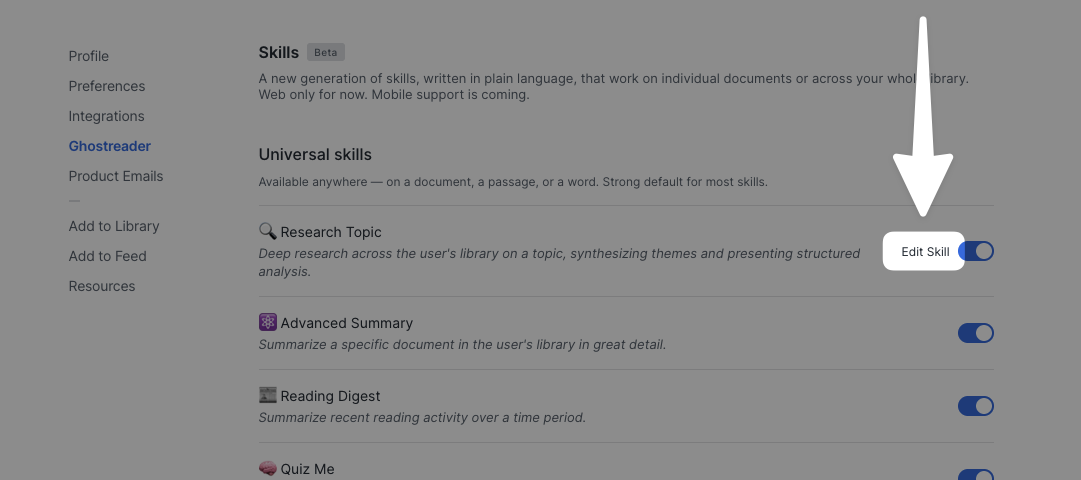
To browse, edit, or create skills, click Customize next to Prompts and skills on your Ghostreader preferences page. Your custom prompts are listed at the top of the page, with skills grouped below them.
To edit an existing skill, hover over the skill's name then click the Edit skill option.
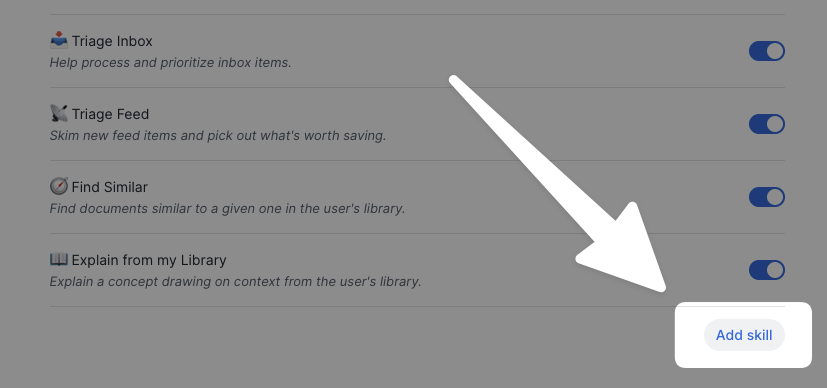
To add your own skill, click the Add skill button at the bottom of the list of skills for the scope you'd like your skill to apply to (Universal, Document, Passage, Word/Phrase).
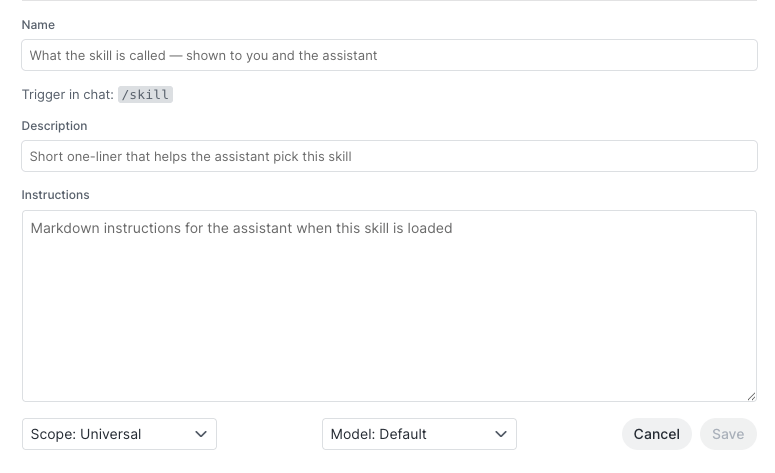
When you create a skill, you'll give it a name, a short description that helps Ghostreader decide when to use the skill on its own, and the instructions Ghostreader follows when the skill runs. Just below the name, you'll see the skill's trigger, the slash command you can type in chat to run it. Two dropdowns below the instructions round out the skill: Scope sets where the skill is available (Universal, Document, Passage, or Word/Phrase), and Model sets which AI model the skill uses.
Control what Ghostreader can do with tools
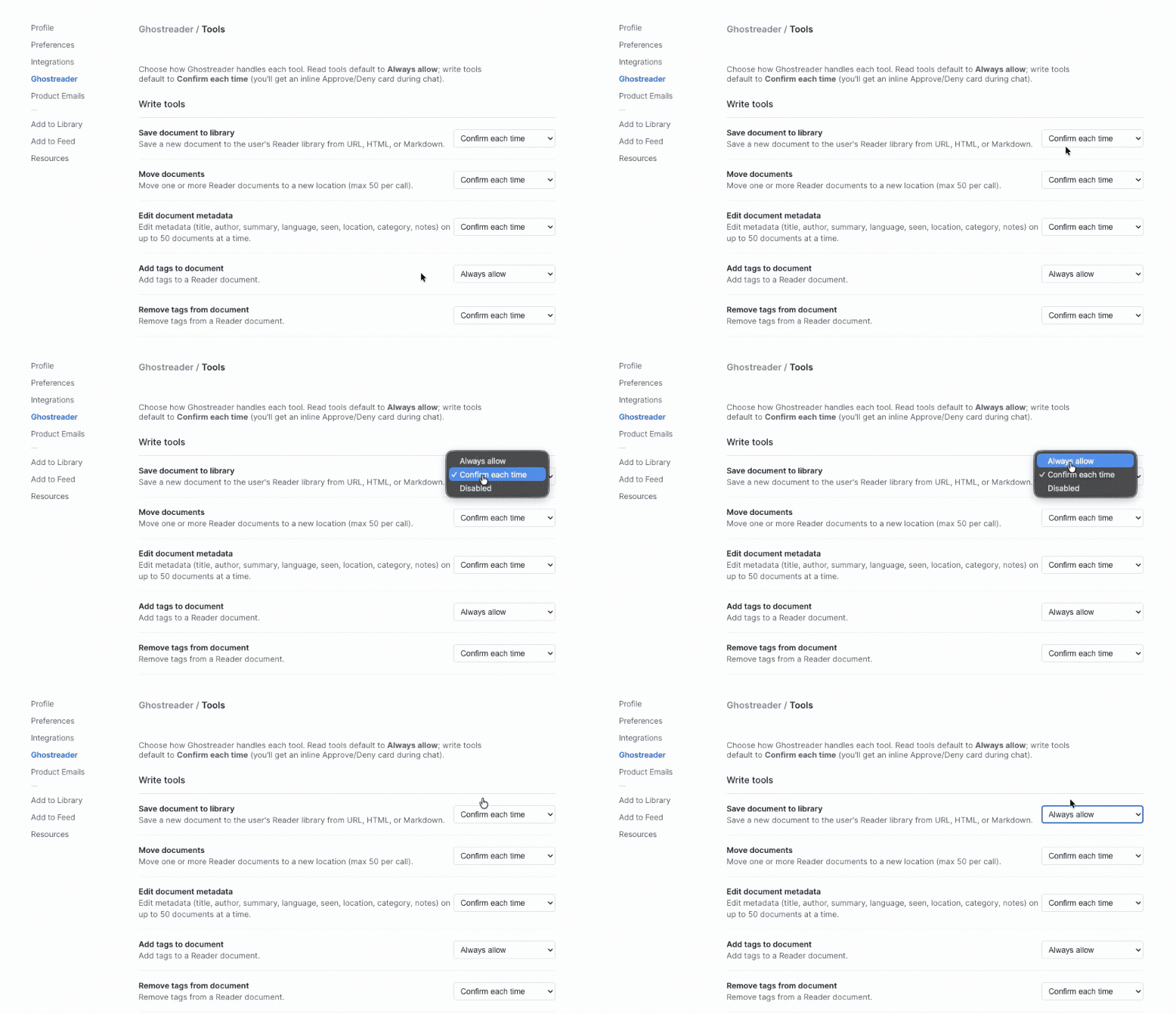
Tools are the actions Ghostreader can take while answering you, and the Ghostreader tools page is where you decide how much it can do on its own. To get there, click Customize next to Ghostreader tools on your Ghostreader preferences page.
Tools come in two groups:
- Write tools change things in your library, like saving a document, moving documents, editing metadata, adding or removing tags, creating highlights, and editing highlight notes. These default to Confirm each time.
- Read tools look things up, like searching and listing your documents, tags, and highlights. These default to Always allow.
Each tool has its own dropdown where you can choose Always allow, Confirm each time, or Disabled.
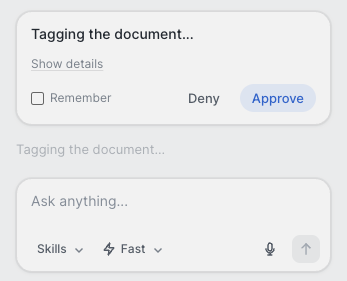
When a tool set to Confirm each time runs, Ghostreader pauses and shows a confirmation card right in the chat. Click Approve to let it proceed or Deny to stop it. Check the Remember box first to save your answer for future uses of that tool, which updates its permission to Always allow or Disabled accordingly.
Set custom instructions
If you'd like to shape how Ghostreader talks to you, add Custom instructions in the field at the bottom of your Ghostreader preferences page. Whatever you write there is applied to every conversation.
Chat about a single document
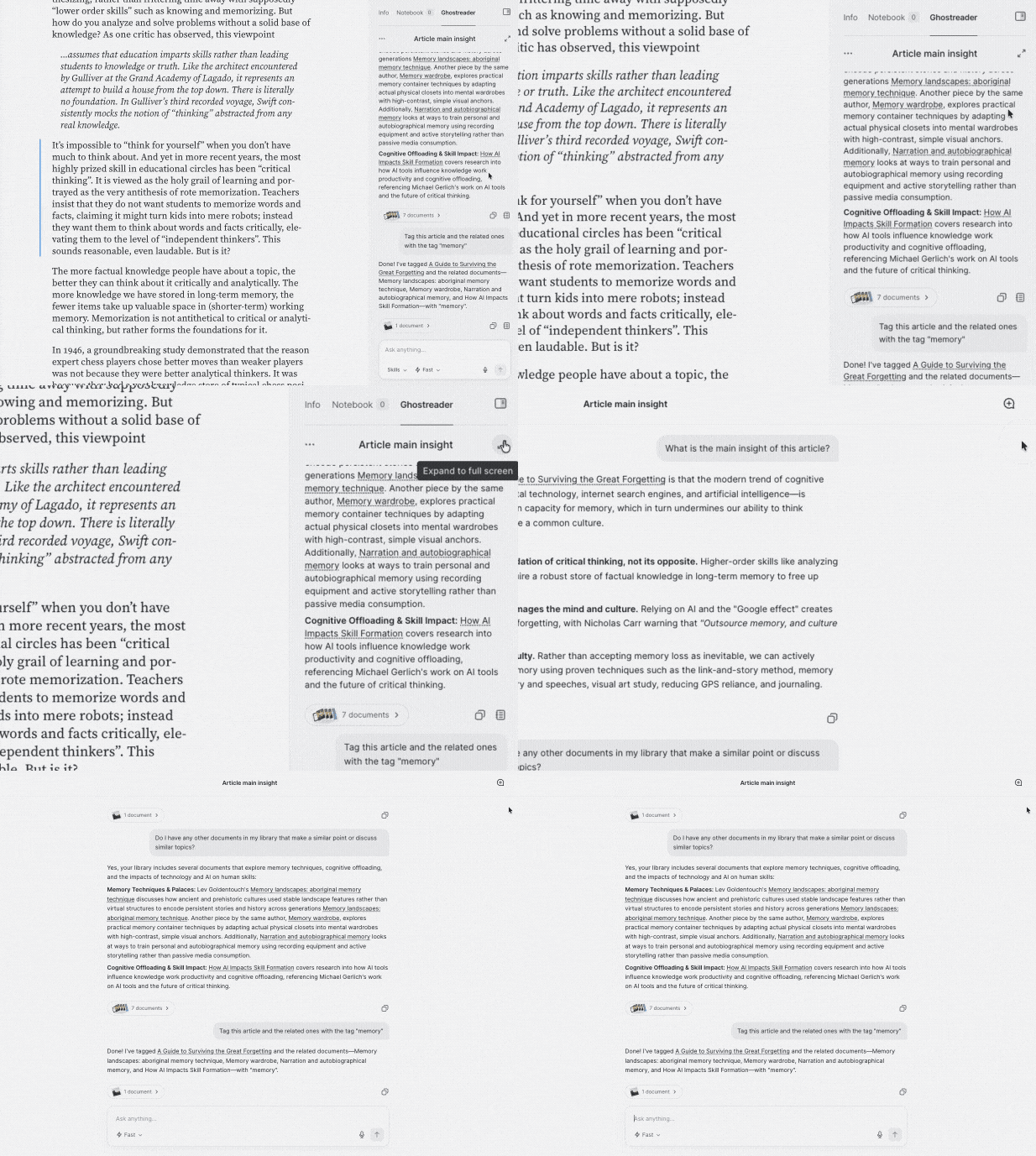
Global Ghostreader also works alongside a single document. Open any document and click Ghostreader in the right sidebar to ask contextual questions about what you're reading. When it's relevant, Ghostreader can also pull in context and references from other documents in your library.
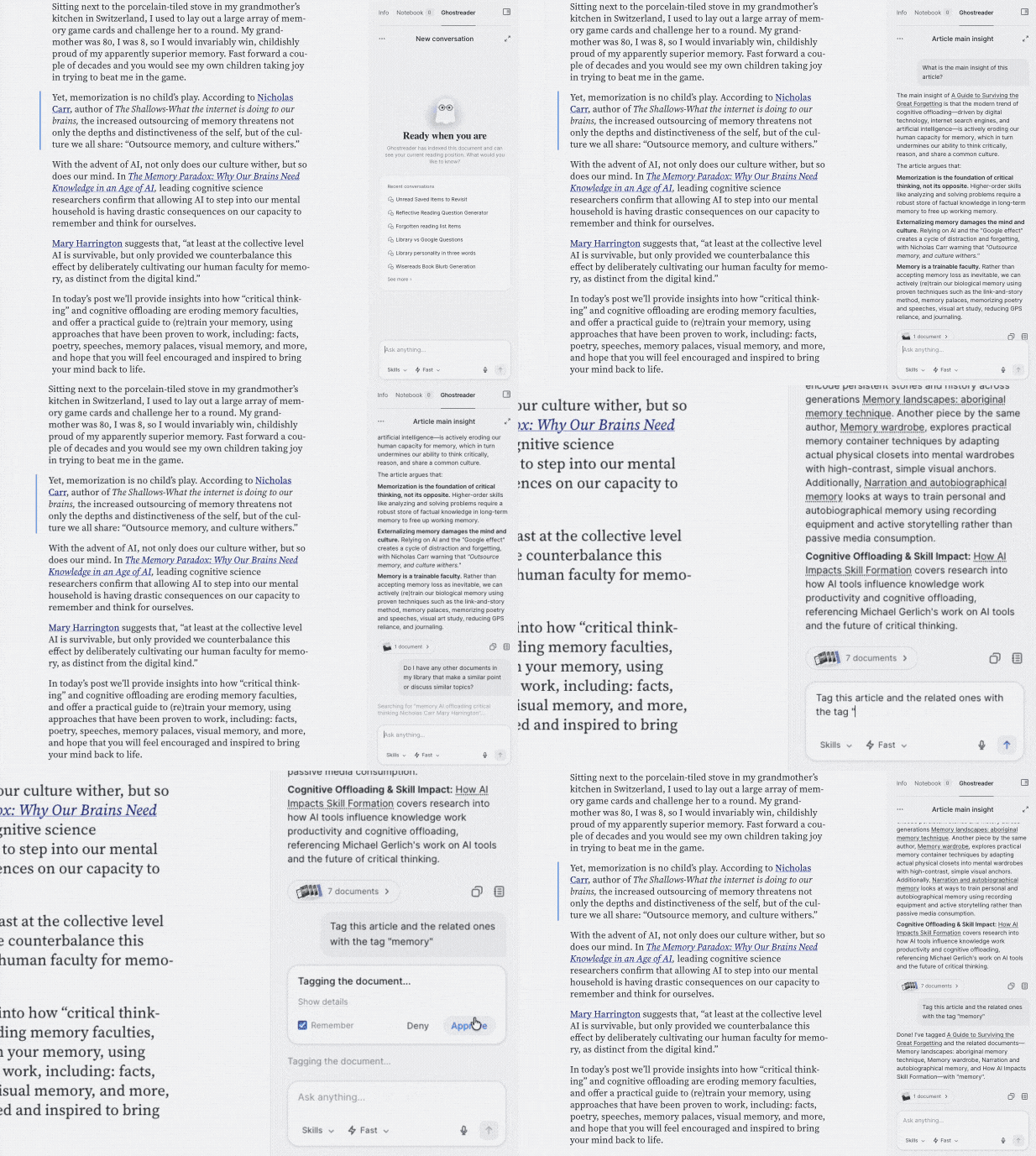
Skills and tools work here too, so you can quiz yourself on the current document or ask Ghostreader to tag it without leaving the page.
If a sidebar conversation deserves more room, click the expand icon in the top right of the panel to open the same chat in the full-screen Ghostreader view.
Manage your conversations
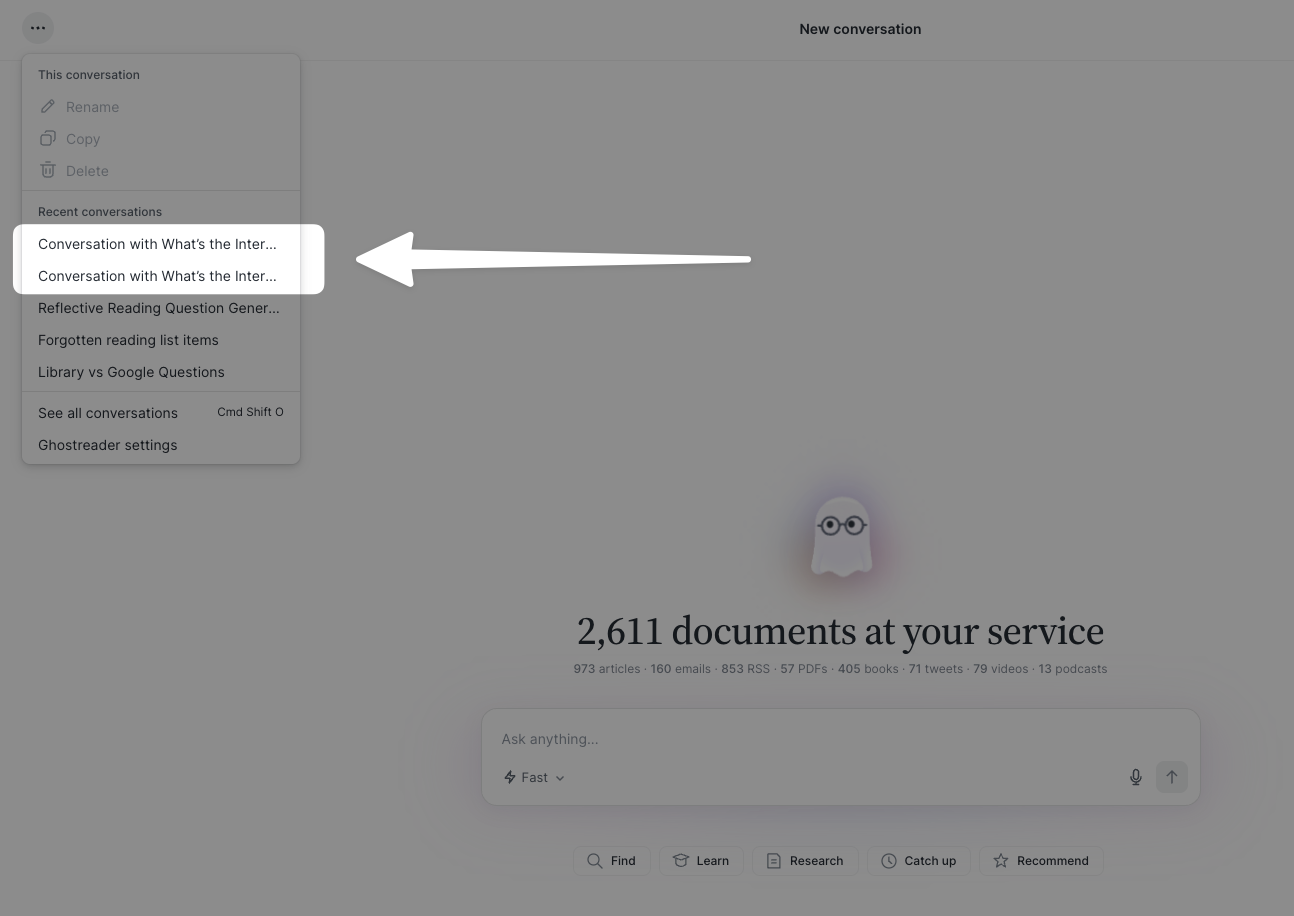
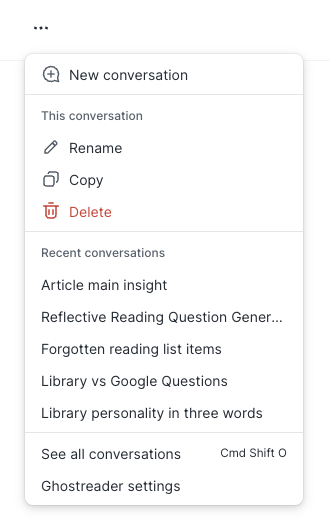
Global Ghostreader keeps your conversation history, so you can start a new chat without losing the old one. Open the actions menu (...) at the top of the chat, in either the full Ghostreader view or the document sidebar, to:
- Start a New conversation.
- Rename, Copy, or Delete the conversation you're currently in.
- Jump to another chat from the Recent conversations list.
- Open See all conversations (
cmd/ctrl + shift + O) for a searchable list of every Ghostreader chat you've had. - Head to your preferences with Ghostreader settings.
Global Ghostreader FAQs
Can I switch back to the classic Ghostreader?
Yes. Turn off the Global Ghostreader toggle on your Ghostreader preferences page to use the classic per-document chat experience instead. Your custom prompts stay available either way.
Will conversations from the mobile app appear on web?
Yes. Conversations sync between devices, so chats you start in the mobile app show up in your conversation history on web, even ones you've cleared on mobile. Synced mobile chats appear with the generic name "Conversation with [document title]", and you can rename them from the actions menu to make them easier to find.