


Finding Your Highlights
One of the greatest powers that comes with using Readwise Highlights is the ability to think, "Hey, I'm pretty sure I read something about that once," and be able to find the exact quote within minutes.
Whether you're writing a thesis or just trying to win an argument with a family member, citing your sources can make a big difference.
Browse by source
Maybe you can't remember any of the words in the quote, but you know it was in the book you finished last week. Maybe you don't even have a specific quote in mind, you just know that an article you read the other day had some really good ideas about a certain topic.
To find a specific source on web, click into the Browse tab and select the appropriate category. (Or choose "Everything" to see all of your source documents in one place.)

On mobile, open the Library tab and choose a section: Books, Articles, Supplemental books, Podcasts, or Tweets.

Further down the Library tab, Discards holds any highlights you've discarded, and the Tags section lists your tags so you can browse your highlights by tag.
Search by keyword
If you've got a word or two that you know are in the passage you're looking for, a keyword search can get you to the quote even faster.
On web, click the magnifying glass icon in the top right to open the search field. Type your keywords and hit enter to access the search results page.

Highlight text and document metadata are both queried for search keywords, and results with matches in both places will be ranked above results that only match one.
An example: taleb harvard will return highlights that have "Taleb" in the author field and include the word “Harvard” in the highlight text before highlights that just mention one of those terms.
Pro Tip: Skip the middleman and search by URL
Much like Google, search results in Highlights can be accessed using a URL parameter to query the page: readwise.io/search?q={query}
For example: readwise.io/search?q=never+gonna+give+you+up. (Your browser should convert any spaces to +, so you don't need to type those into your query.)
You can use this knowledge to set up a site search shortcut in browsers like Google Chrome or Arc, a Quick Link in Raycast, and more!
On mobile, tap the magnifying glass icon in the top right of the Library tab and enter your keywords.
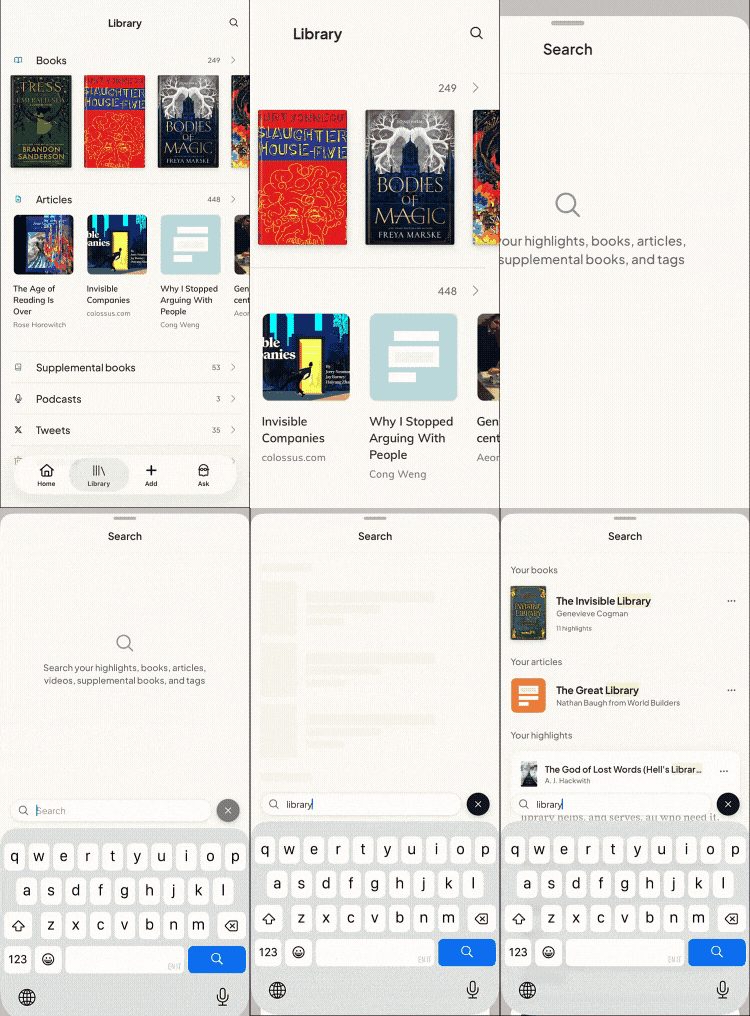
Search covers your books, articles, supplemental books, podcasts, tweets, tags, and highlight text, and groups the results by type (Your books, Your articles, Your highlights, and so on). Books and other documents match on their title or author, while highlights match on their text and notes.
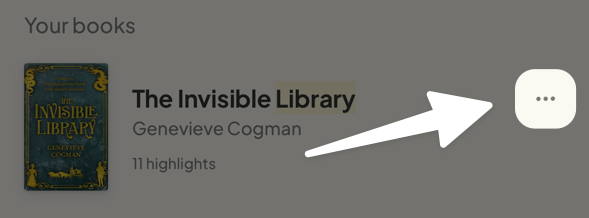
You can take action on any search result (change its frequency, add tags, share, and more) by tapping into the three-dot menu to the right of the list item.
Chat with your highlights
If your memory of the passage you're looking for is just too vague to search, try the Chat feature instead! You might be surprised how quickly you can surface a specific piece of text from a psychology book with an obscure question like, "Have I ever taken a highlight about how the brain works?"