



Import from O'Reilly Learning
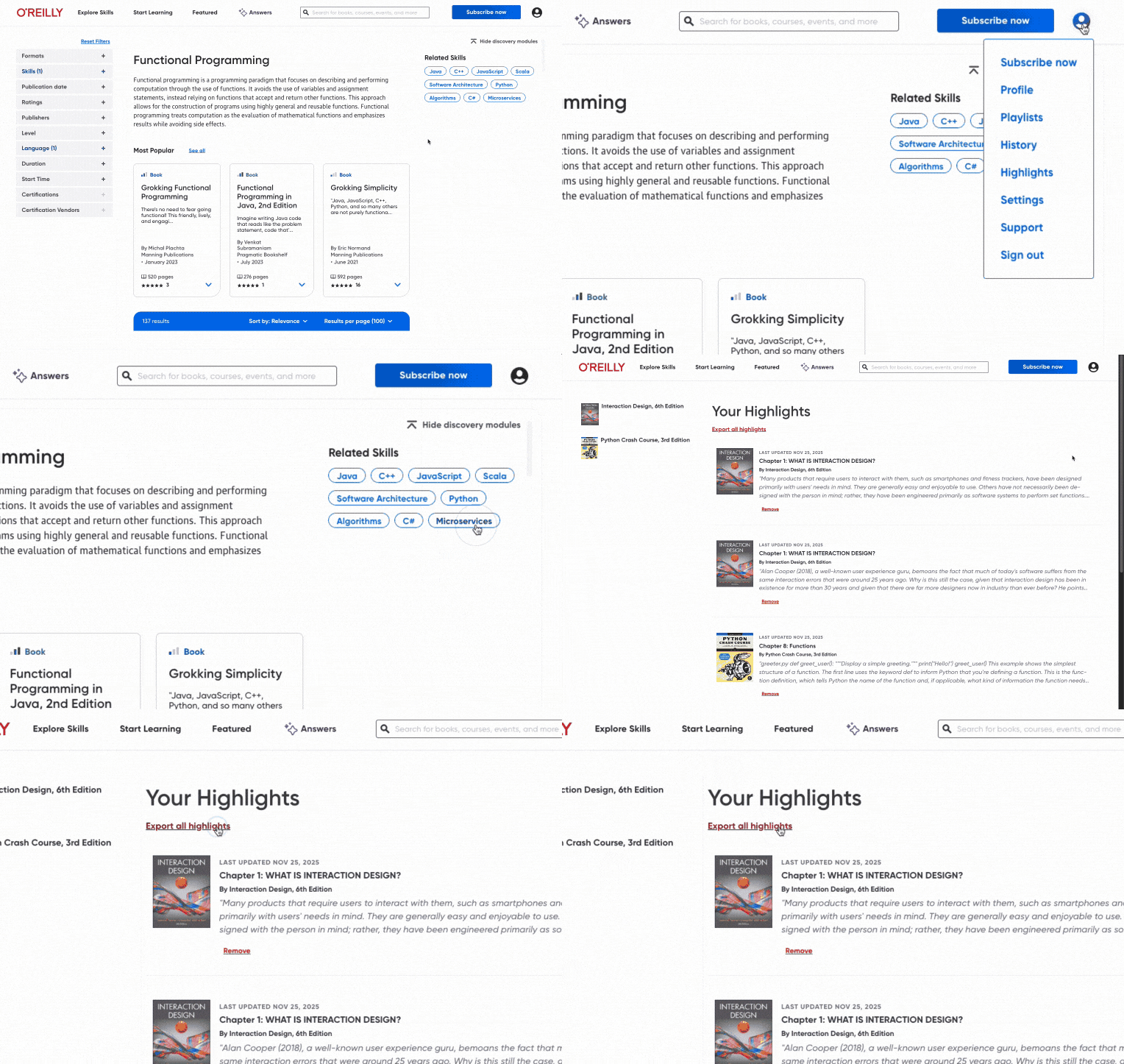
To import your highlights from the O'Reilly Learning platform into your Highlights library, first make sure you're logged into the O'Reilly Learning website. Click your profile icon, located in the top-right corner of the page. In the dropdown menu, select Highlights.
On the Your Highlights page, click the Export all highlights link below the page title. Your highlights will download as a CSV file.
Once you've downloaded the CSV file with your highlights, go to the Highlights import page and locate the O'Reilly Learning card in the Import & Upload section.
Click Import to go to the upload page, then click Upload a CSV file and select the file you just downloaded (likely titled oreilly-annotations.csv).
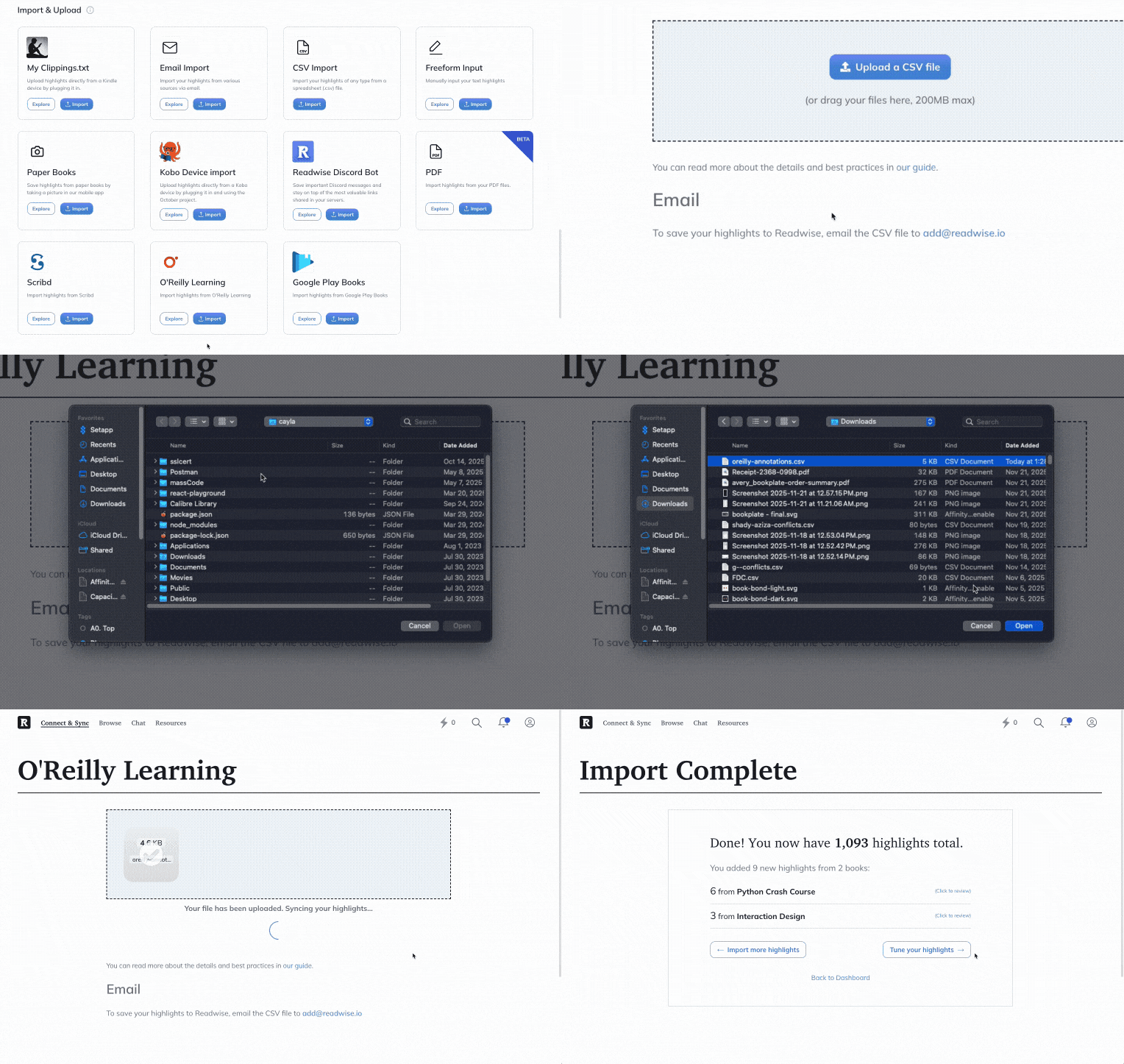
Duplicate highlights are detected automatically, so nothing added in a previous upload will be imported again. If you've made new highlights in O'Reilly Learning and want to import them to your Highlights library, just repeat the steps above and only the new highlights will be added to your account.