


Connect Readwise Highlights with Goodreads
If you're new to the Highlights app and don't have many highlights of your own, Supplemental Highlights are a great way to fill your Library with the wisdom of books you've read in the past. But remembering what books you've read and manually entering them into your Supplemental Books can be a hassle.
If you've ever used Goodreads to track your reading, you can make use of that data to fill out your Supplemental Books automatically by connecting your Goodreads account to Highlights.
How do I connect my Goodreads account to Highlights?
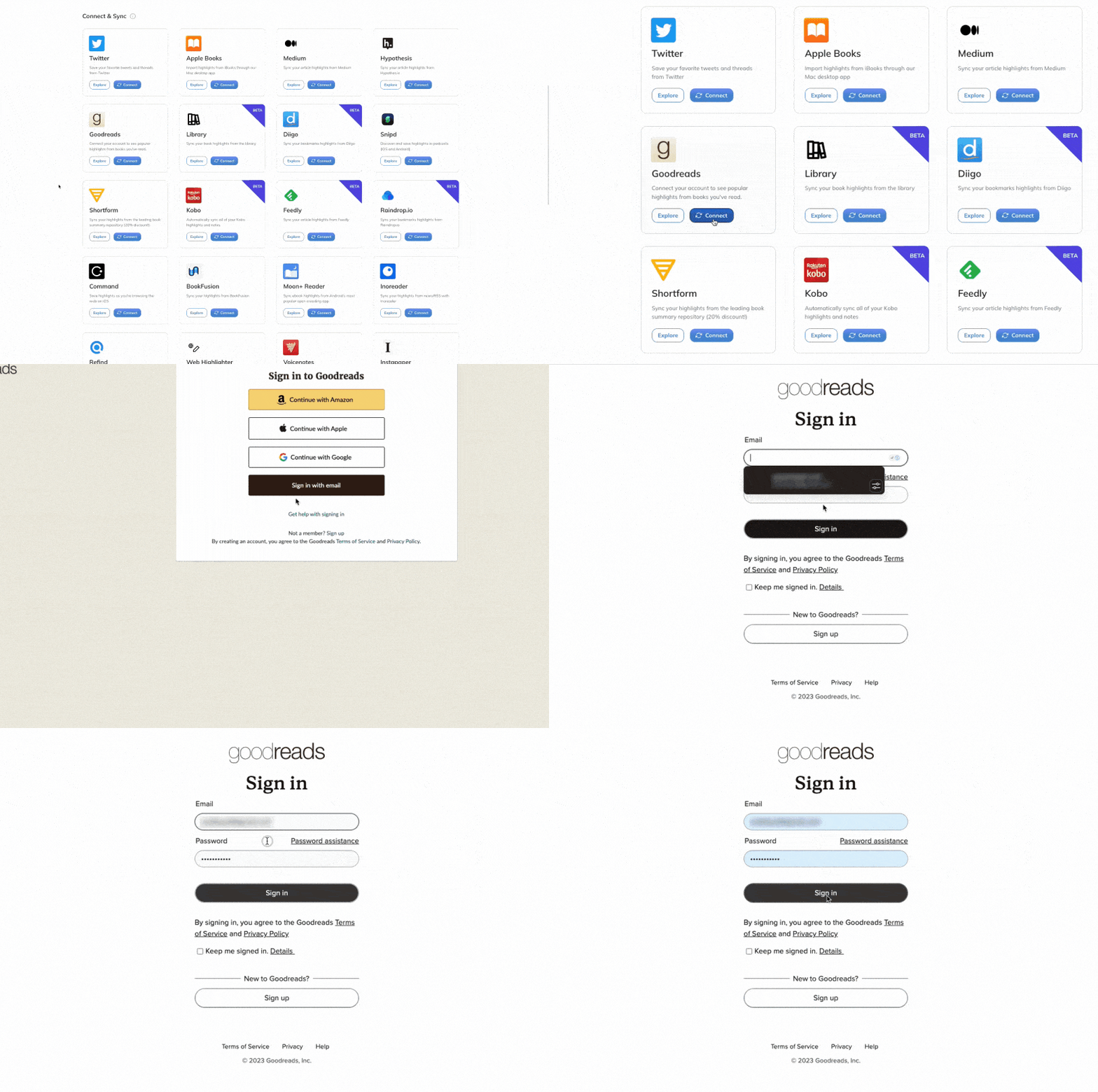
To get started, go to the import integrations page, find the Goodreads option, and click Connect.
If you're not currently logged in to your Goodreads account, this will prompt you to enter your login information.
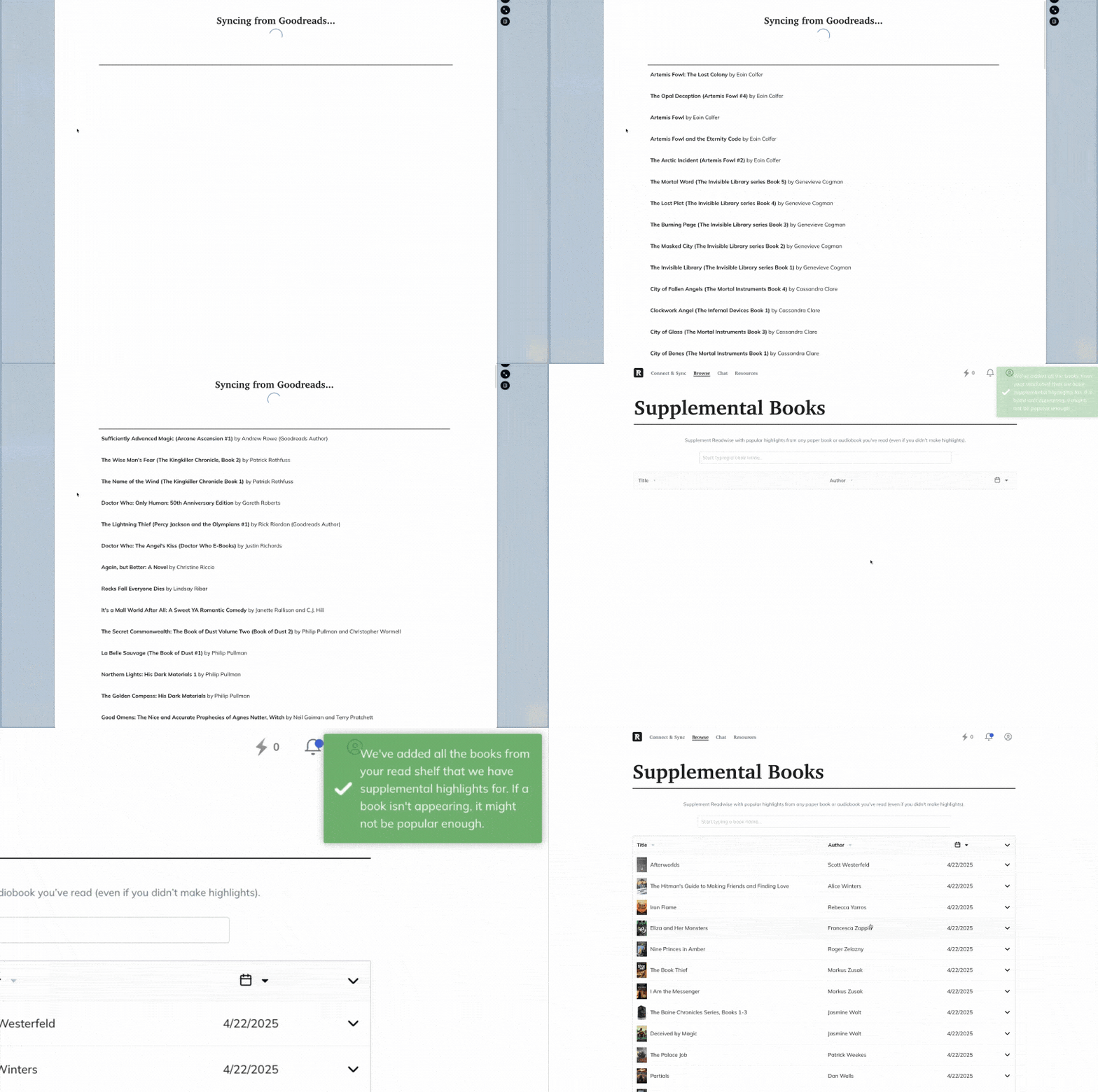
The integration will look at each book on your Read shelf and check to see if any Supplemental Highlights are available for that book. Any books that do have Supplemental Highlights will be added to your Supplemental Books.
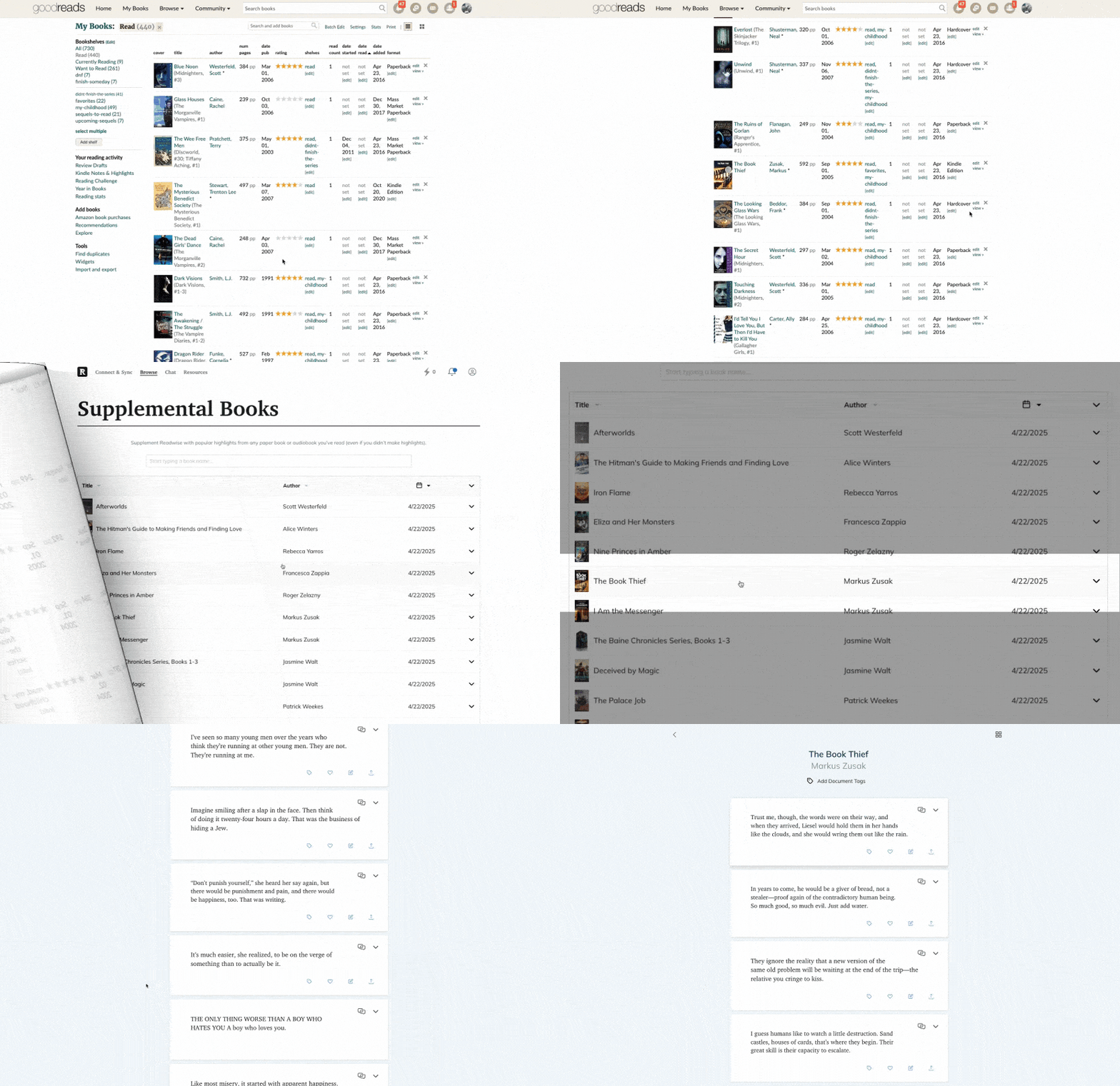
Once you've set up the integration, you'll be able to see the books you've read in your Highlights library and begin to see popular highlights from your Goodreads books in your Daily Review.
Does the Goodreads integration automatically update with new books?
Yes! Whenever you mark a new book as Read on Goodreads, the integration will check for Supplemental Highlights and add the book to your Library.
Why am I seeing duplicated books from my Goodreads account?
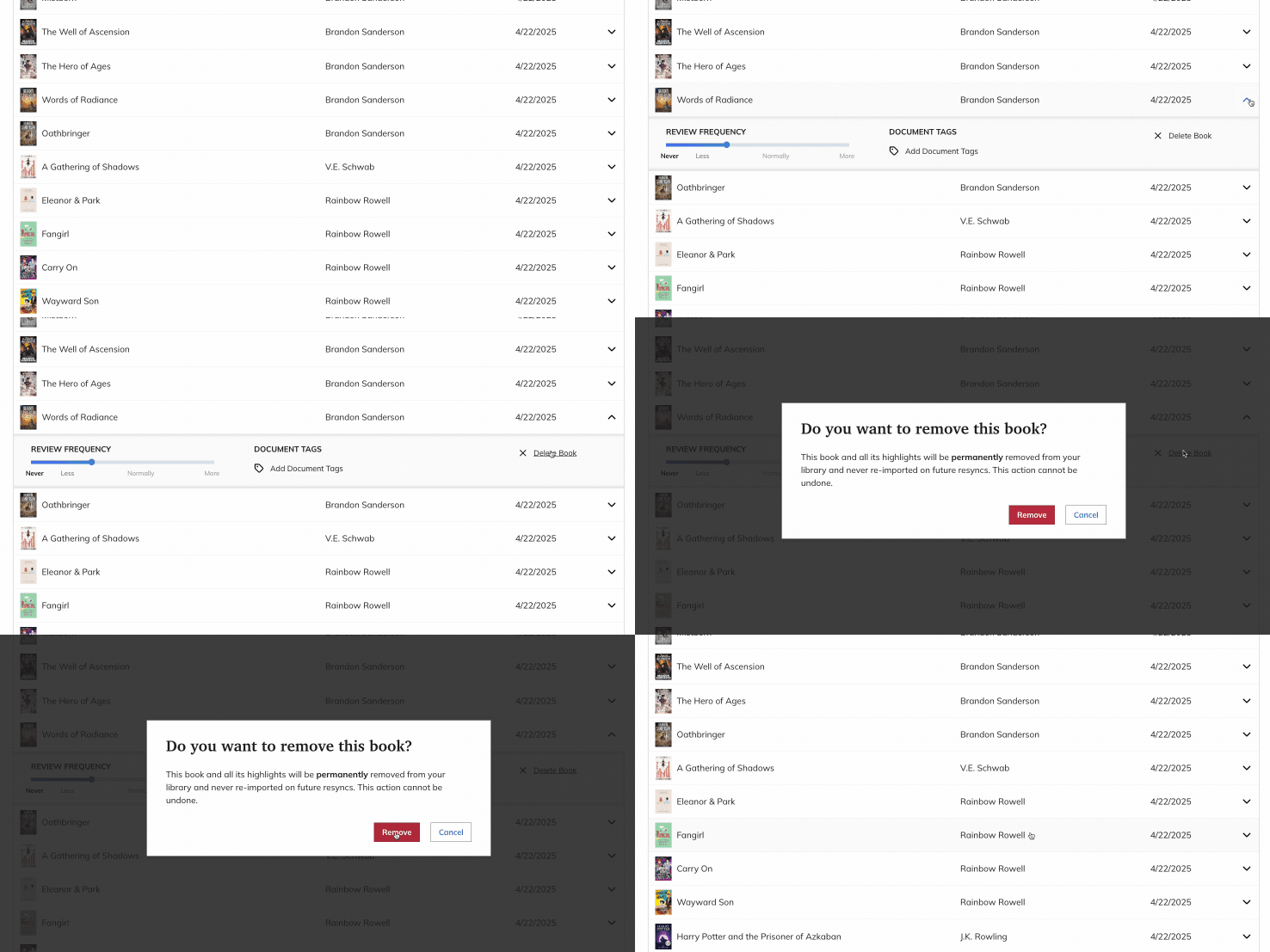
Highlights treats Supplemental Books as separate entities from books you've added from other sources (or manually). If you made highlights while reading the book using another source connected to your account (e.g. Reader, Kindle, Kobo, etc.) and then marked the book as Read on Goodreads, you may see two versions of the book in your Highlights library: one in Books with the highlights you took, and one in Supplemental Books with popular highlights.
You can remove the Supplemental Books version by clicking into the book details and selecting Delete book.