



Import from Apple Books
How do I import highlights from Apple Books?
It's much harder to import your highlights from Apple Books (iBooks) than it is from other e-reading platforms such as Amazon Kindle, but that's okay. There are still two ways to get your Apple Books highlights into your Highlights library.
First, you can download and install the Readwise Mac tool on your computer by following the instructions here: Readwise Mac Tool.
Second, you can email highlights directly from the Books app on your iPhone or iPad into your Highlights library by following the instructions below.
How do I import Apple Books highlights from my iPhone/iPad?
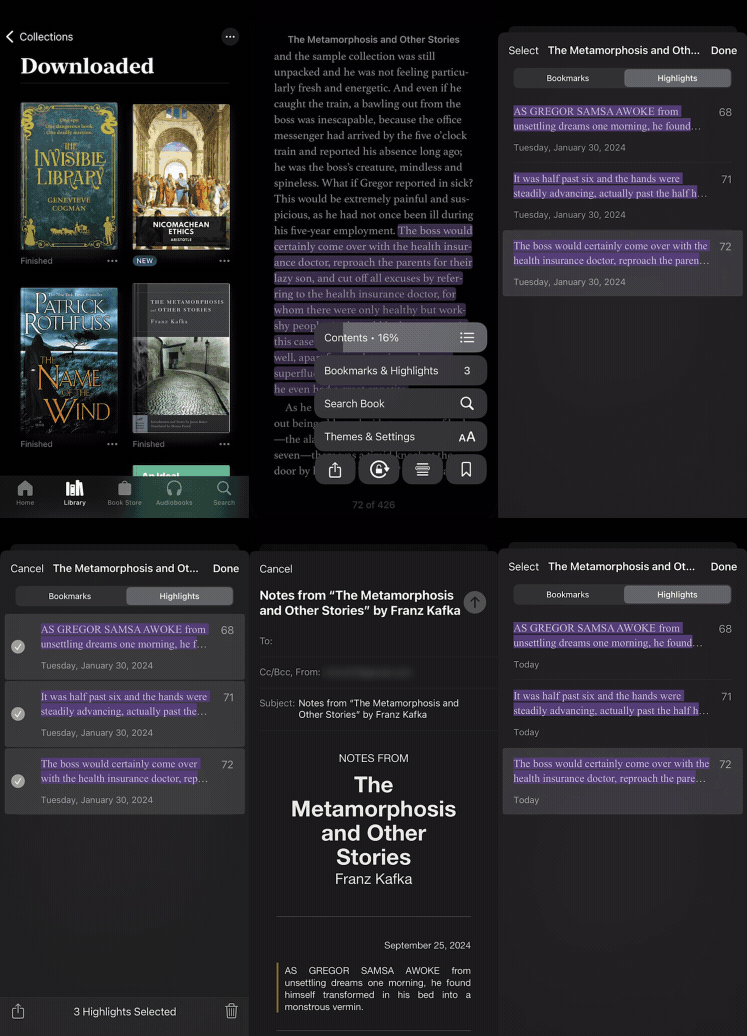
To import highlights from Apple Books on your iPhone or iPad:
- Open your book in the Apple Books app
- Tap into the actions menu in the bottom right
- Select "Bookmarks & Highlights"
- Switch to the "Highlights" tab
- Tap Select in the top left
- Select the highlights you'd like to send to your Highlights library
- Tap the Share icon, then select your email app
- Send to add@readwise.io
These highlights will then be automatically imported into your Highlights library!
Can I import highlights from PDFs read in Apple Books?
Unfortunately, Apple Books doesn't create "real" highlights on PDFs (i.e. according to the PDF spec), so you'll need to use a different app to get these highlights into your Highlights library. You can check out our list of previously vetted software that will allow you to import your PDF highlights into your Highlights library.
Alternatively, you can upload the PDF into the Reader app to read and highlight. This will remove the step of needing to email the PDF, since any highlights you make in Reader will automatically sync to your Highlights library.
What do I do if the Mac tool isn't importing my Apple Book highlights?
Persistent spinning wheel or error
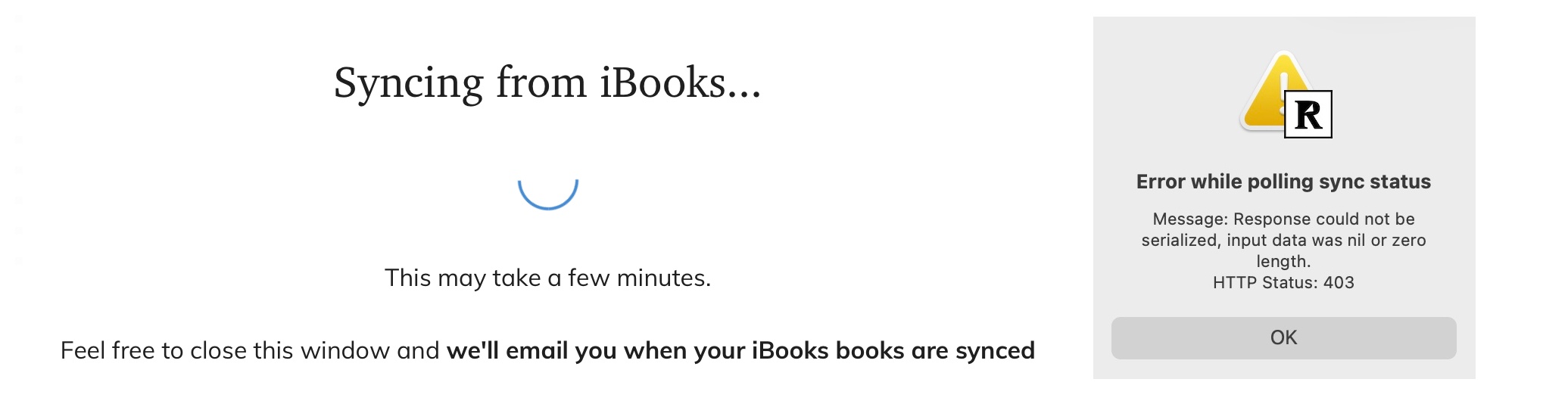
If this happens, there are a couple of possible ways to resolve the error.
Resync the Mac tool
- Log out of the Mac tool.

- Select Resync to log back in and to run the sync again.
Open Apple Books on your computer
- If you've never opened the Apple Books app on your computer (e.g. you only read on your phone or tablet), the database may not be synced and thus the Mac tool won't be able to find any of your highlights.
- Launch the Mac app at least once to force a sync, wait for your most recent data to appear, then try the Mac tool again.
Mac tool caveats
- The Mac tool only works for Big Sur and newer at this time. If you can't or don't want to upgrade the OS, then you can use the instructions above to import highlights from iPhone or iPad.
- The Mac tool cannot import highlights made on PDFs as Apple Books doesn't follow the PDF spec to create "real" highlights. You can use the instructions above to import highlights from PDFs.